
Create Hotspot (Basic)
Hotspots in Panoee allow you to add interactive touchpoints inside a virtual tour. They help users navigate between scenes, view media, or access additional information directly within the 360° viewer.
What is a Hotspot?
A hotspot is an interactive point placed at a specific location in the virtual tour. When users click or tap it, it can trigger actions such as navigation, displaying content, or playing media.
Hotspot Types in Panoee
Hotspots are divided into three main groups: Standard, Media, and Polygon. Each type serves a different purpose in building an interactive virtual tour.
Standard Hotspots (9 Types)
These are the most commonly used hotspots for navigation and basic content display.
Hotspot Type | Purpose |
|---|---|
Point | Navigate to another scene using a simple marker |
Chevron | Provide directional navigation with arrow indicators |
Image | Display an image in a popup or viewer |
Article | Show formatted text content or descriptions |
Video | Play a video inside the tour |
Sound | Play audio when users interact |
Link | Open an external URL |
Compact | Display condensed content (tooltip-style info) |
Product | Showcase product information with details |
Media Hotspots
These hotspots focus on embedding rich media directly into the 360° environment.
Hotspot Type | Purpose |
|---|---|
Video | Embed and play video within the scene |
Image | Display images inside the viewer |
Text | Add inline text content |
Tourguide | Create guided storytelling experiences |
Patch | Overlay visual patches or enhancements |
Polygon Hotspots
These allow flexible, custom-shaped interactive areas instead of fixed icons.
Hotspot Type | Purpose |
|---|---|
Shape | Create a filled clickable area for highlighting zones |
Line | Draw lines to indicate paths or boundaries |
Steps
-
Add a hotspot to the scene
Drag any hotspot type from the bottom toolbar and drop it onto the desired position in the viewer.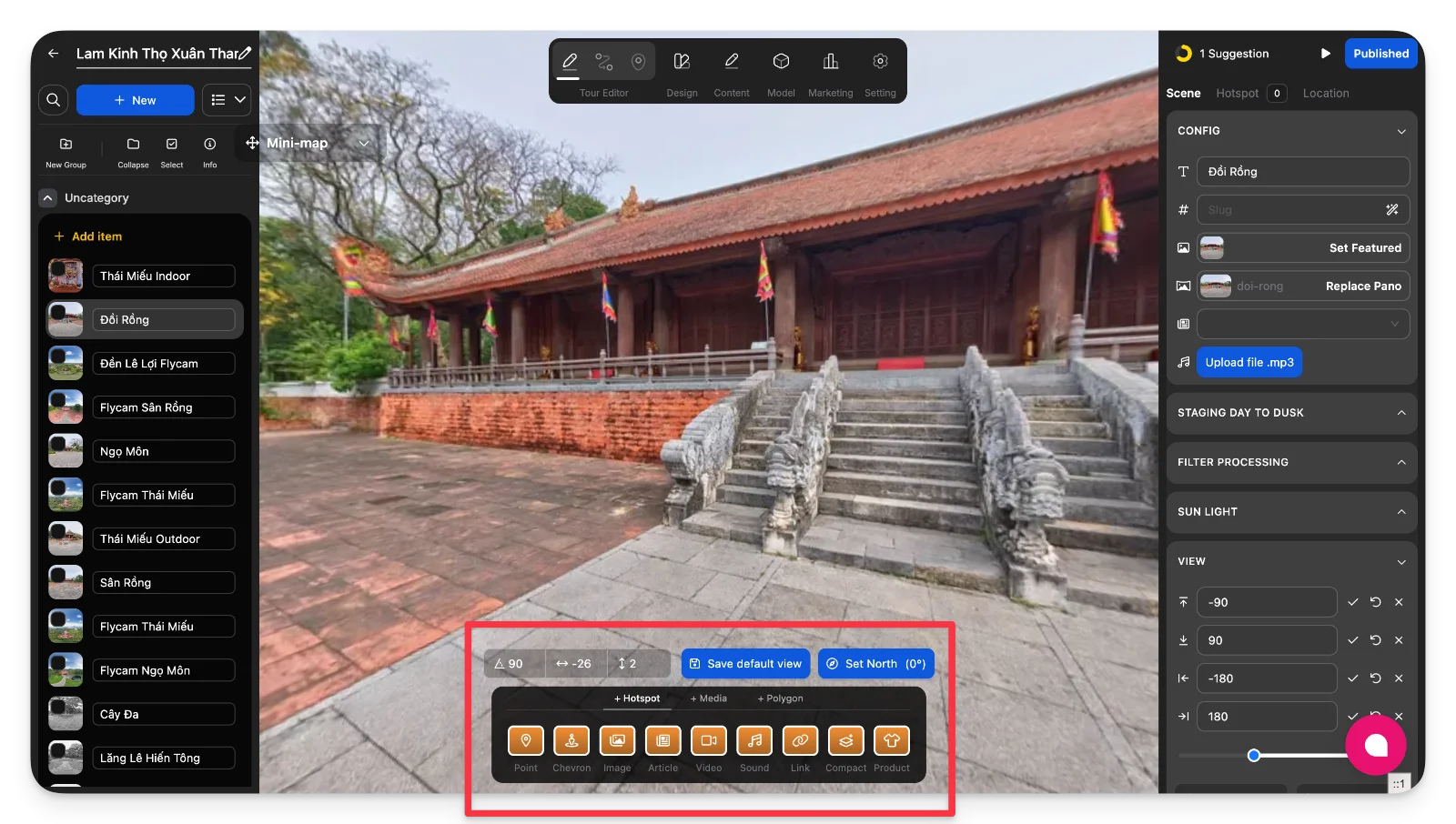
-
Position and adjust the hotspot
Move the hotspot to the correct location. For media hotspots, resize or distort the frame as needed.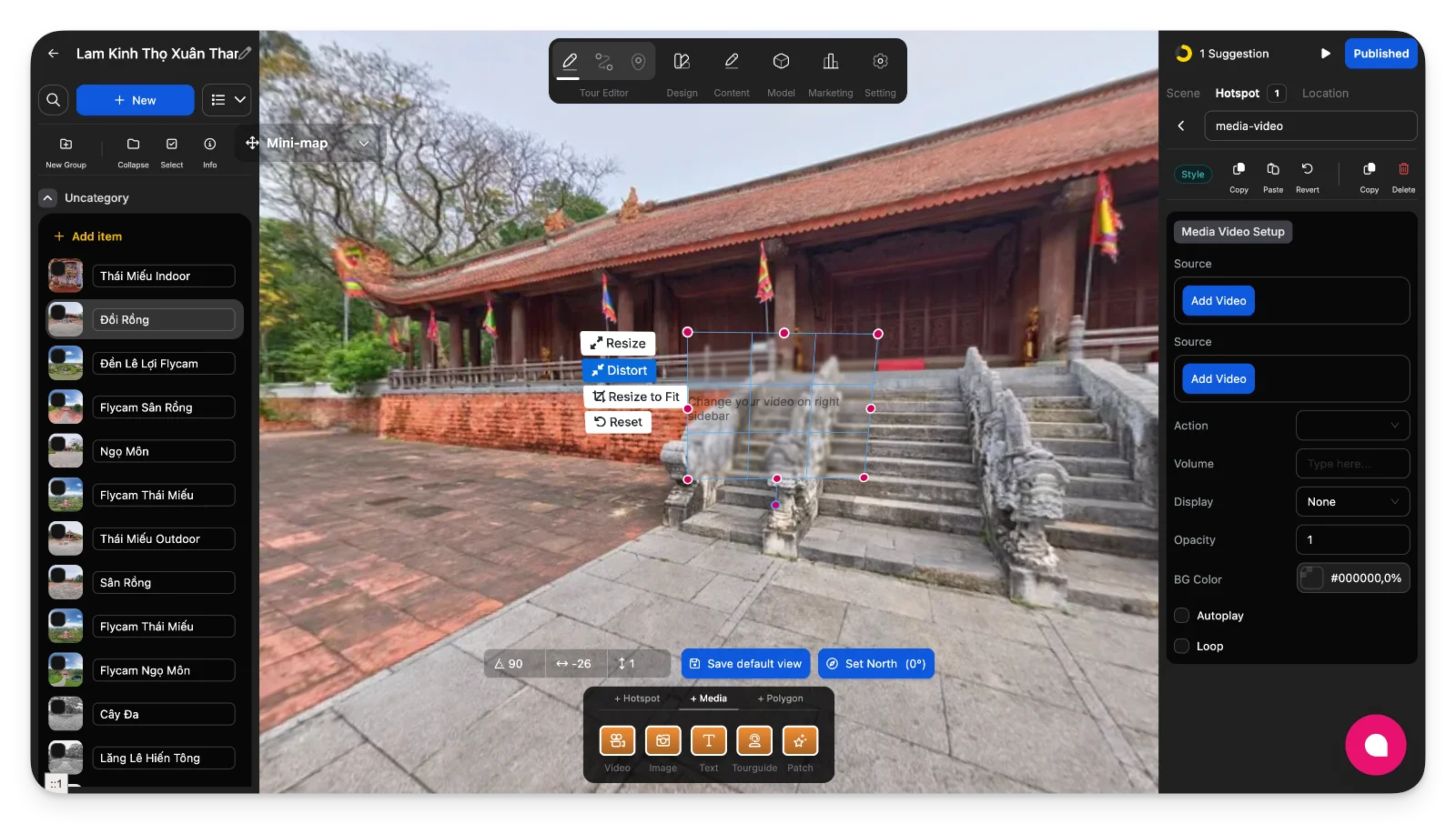
-
Draw a custom area (Polygon only)
Select Shape or Line, then draw directly on the scene to define a clickable area.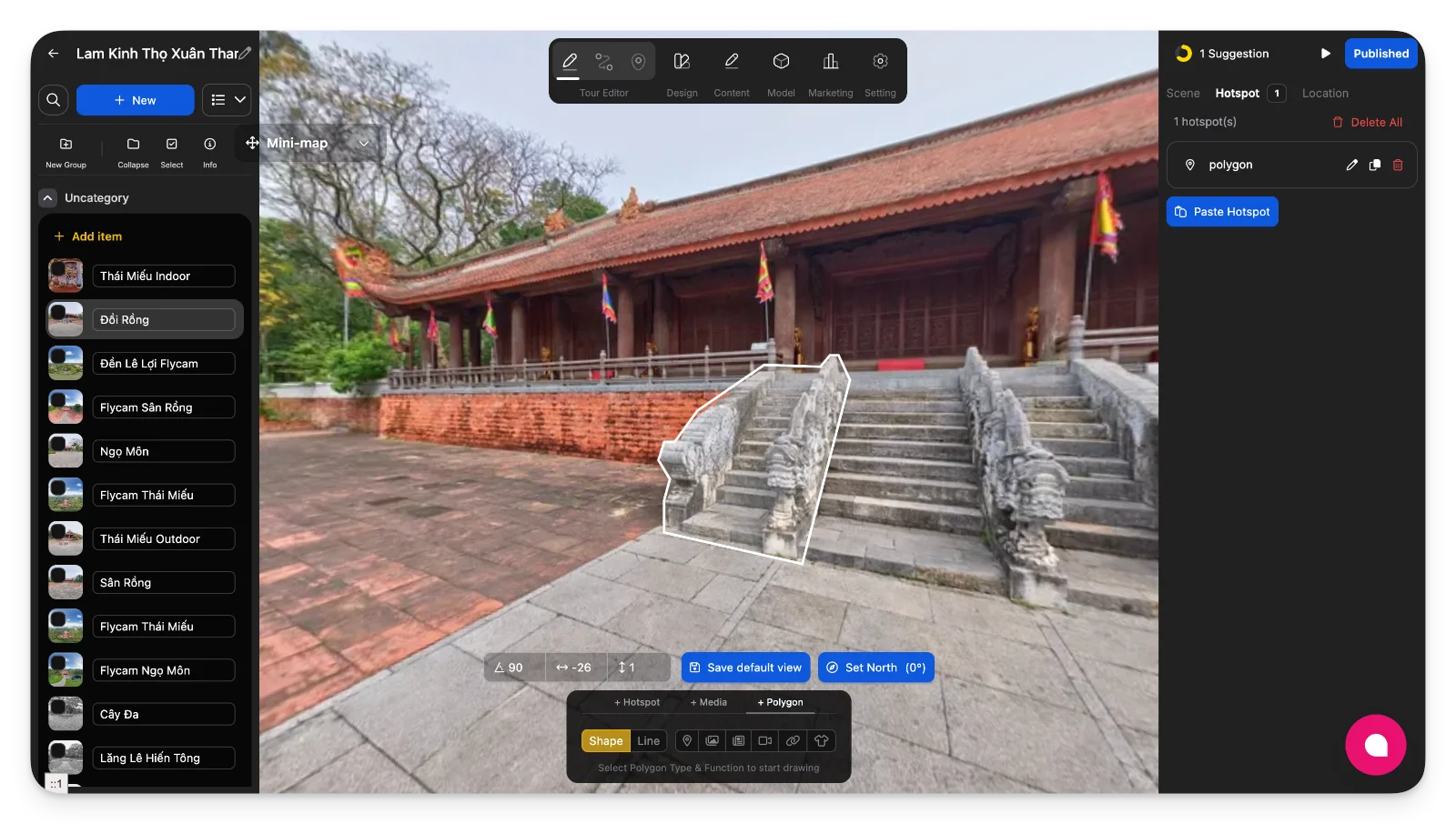
-
Link navigation hotspot to a scene
For Point or Chevron, drag a scene from the scene list into the viewer or assign it in the settings panel.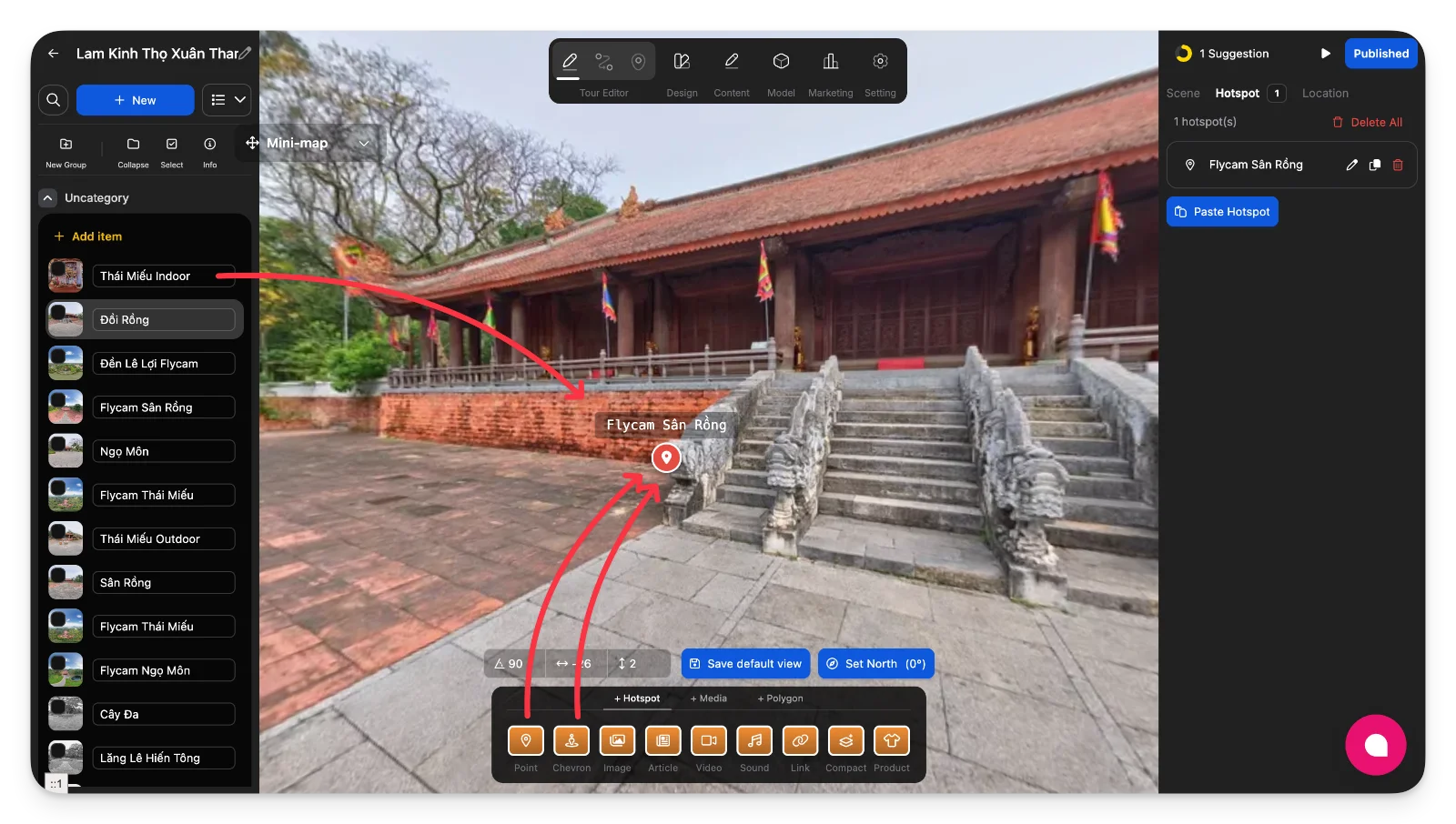
Notes
-
The hotspot toolbar is always available in the Tour Editor view.
-
Drag-and-drop is the fastest way to create hotspots.
-
Polygon hotspots are ideal for large or irregular interactive areas.
-
Each hotspot type has its own configuration options, covered in separate tutorials.