
Rename a Project in Panoee
Learn how to rename a Panoee virtual tour project from the editor so your dashboard and workspace stay organized.
Rename a Panoee Project
Use the project name field in the Panoee editor to rename a virtual tour project. This updates the project name shown in Panoee Studio without changing the project ID or public tour URL.
Steps
-
Open the Project from Your Dashboard
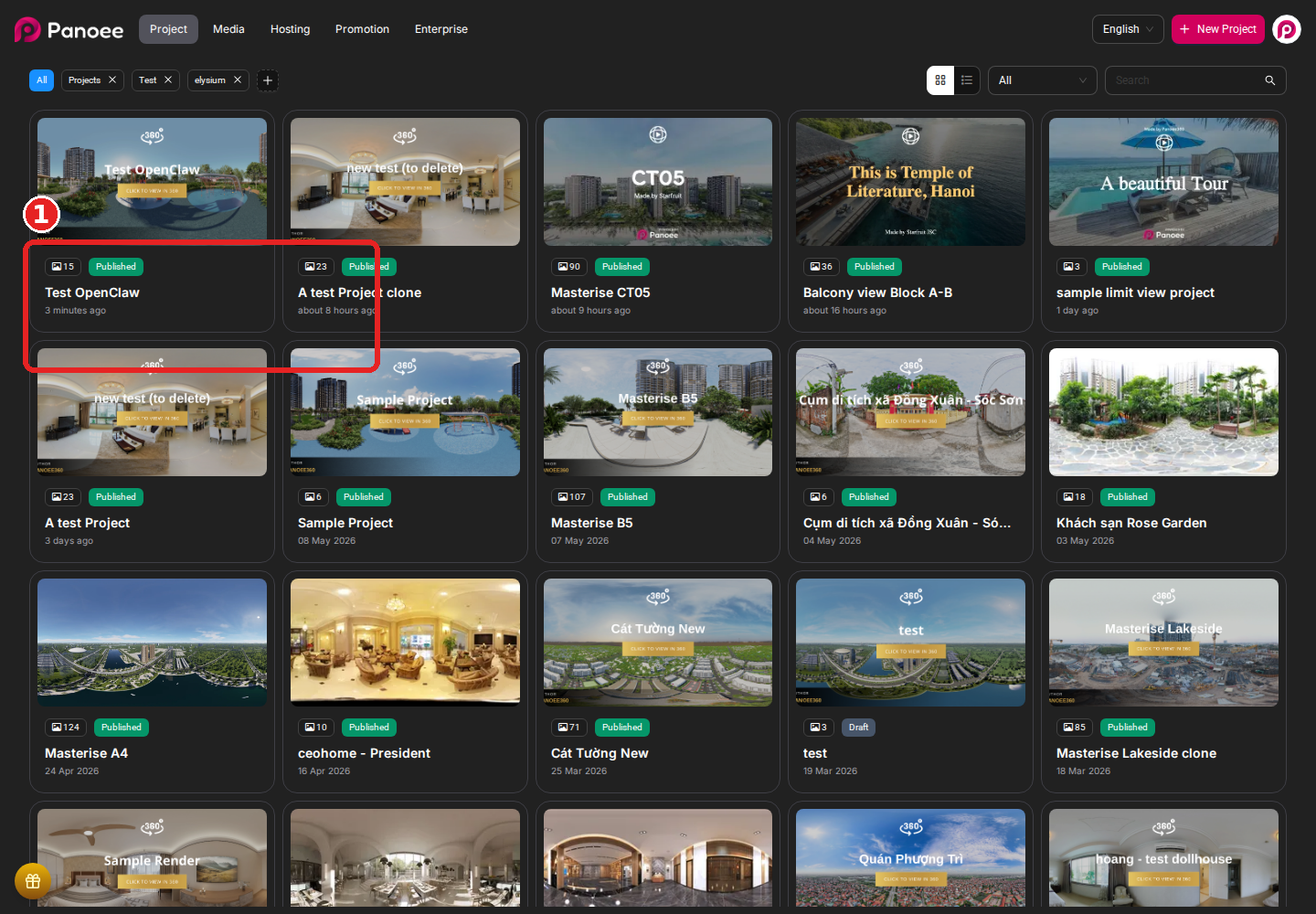
From the Panoee dashboard, find the virtual tour project you want to rename and open it in the editor.
-
Select the Project Name Field
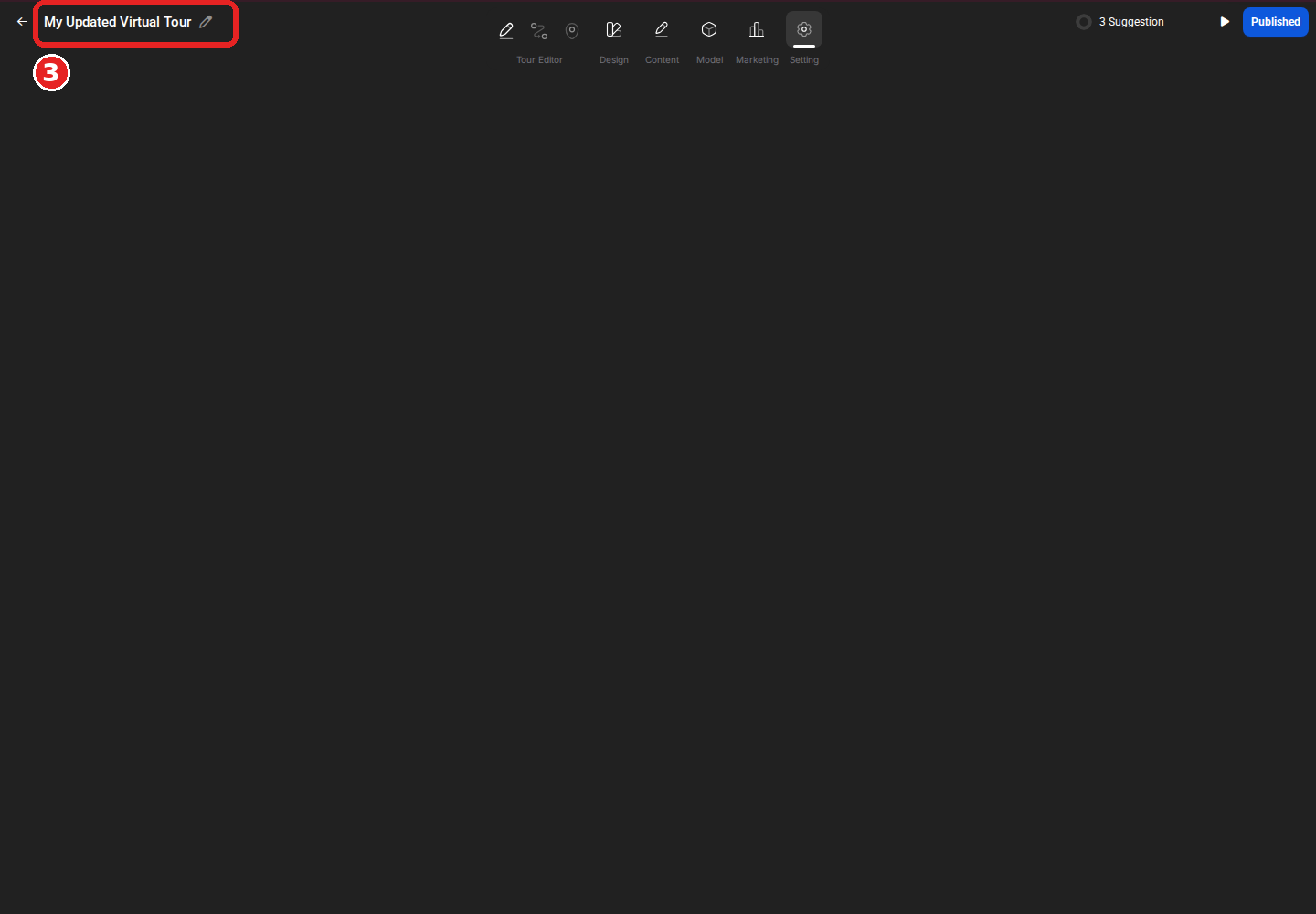
In the editor, click the project name field in the top-left corner.

-
Enter the New Project Name
Replace the existing name with the new project name. Click outside the field to apply the change.
Notes
- Renaming a project changes the internal project name shown in Panoee Studio.
- This does not automatically change the public tour URL or slug.
- To change the public URL, update the tour slug from the publish settings.