
Setup White-label
Set up a custom domain in Panoee White Label to use your own branded Studio URL and Tour URL for virtual tour management and publishing.
What is White Label in Panoee?
White Label in Panoee allows you to fully rebrand the platform so it appears as your own product instead of Panoee.
With White Label enabled, all visible Panoee branding is replaced by your brand, including:
-
Custom domain (your own URLs)
-
Logo and favicon
-
Brand name and page title
-
Primary color theme
-
SEO metadata (title, description, preview image)
This means your clients will interact with a completely branded experience, from the dashboard (Studio) to the published virtual tours — without seeing any Panoee identity.
In short, White Label = total rebranding of Panoee into your own platform.
Requirements
Make sure your account has an active Enterprise subscription before setting up a custom domain.
Steps
-
Open the Enterprise Menu
Go to https://studio.panoee.net/dashboard/enterprise or click Enterprise from the Panoee dashboard. -
Open White Label Settings
In the left sidebar, select White Label. -
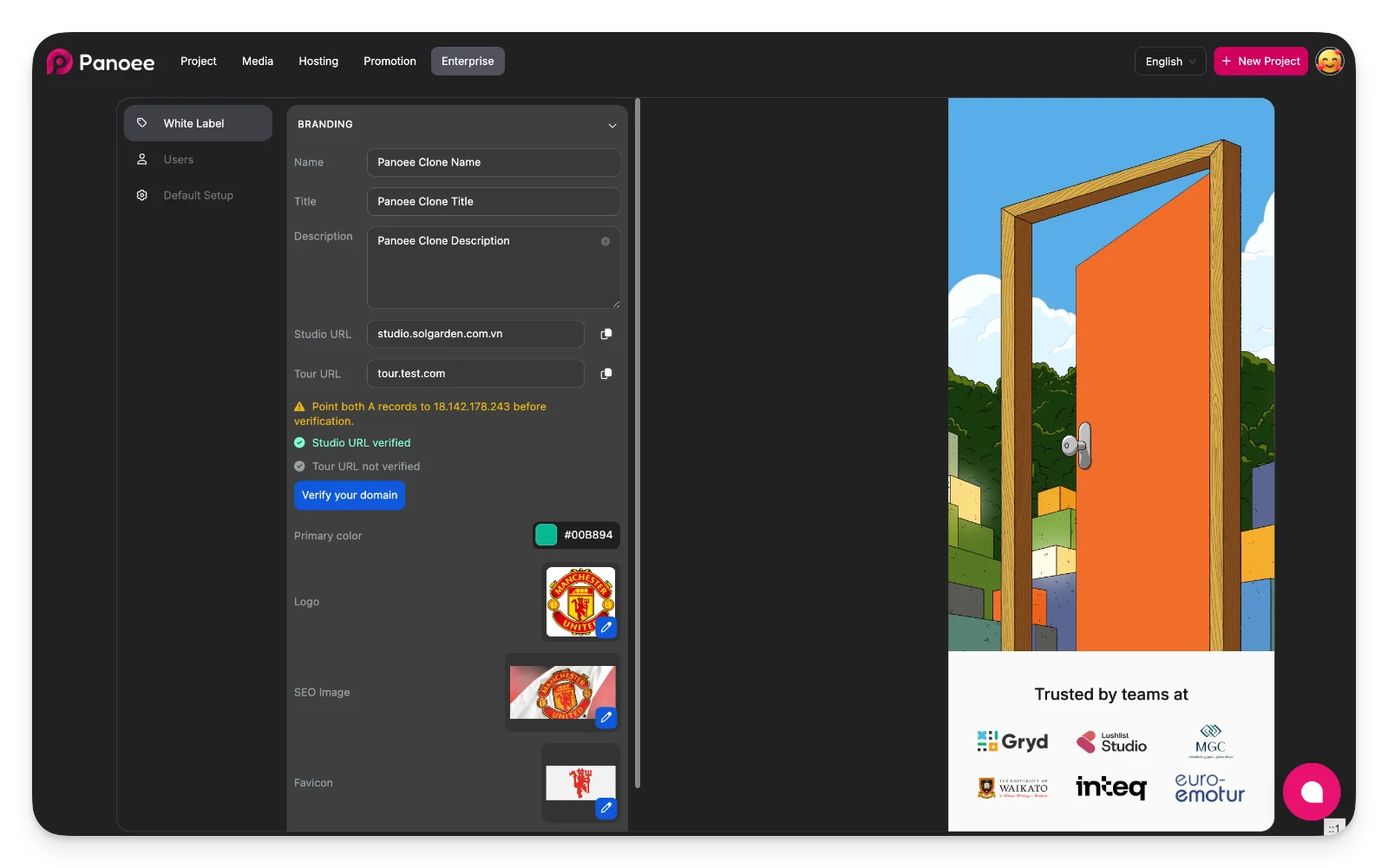
Configure Branding Information
Fill in the basic white-label branding fields for your account.Field
Description
Required
Name
Brand or company name shown in the white-label experience
Yes
Title
Browser or page title for your branded platform
Yes
Description
Short description used for branding and SEO metadata
Recommended
Primary Color
Main brand color used across the white-label interface
Recommended
Logo
Brand logo displayed in the platform
Recommended
SEO Image
Preview image used when sharing links
Recommended
Favicon
Browser tab icon for your branded platform
Recommended
-
Enter Your Custom Domains
Add the two required domain values for your white-label setup.Field
Description
Required
Studio URL
Custom domain used for your branded Panoee Studio dashboard
Yes
Tour URL
Custom domain used for published virtual tour links
Yes
-
Verify DNS Records
Point both domain A records to the IP address shown in Panoee, then click Verify your domain. -
Save and Wait for Final Setup
Save your white-label configuration and wait for the Panoee internal team to complete the remaining setup.
Notes
-
Both Studio URL and Tour URL must be configured correctly.
-
DNS verification may take time depending on your domain provider.
-
White Label ensures a fully branded experience with no visible Panoee elements.