
Update Background Sound
Learn how to add or update background audio in your Panoee virtual tour. You can apply sound globally for the entire tour or set different audio for each scene.
Steps
Update Background Sound for a Scene
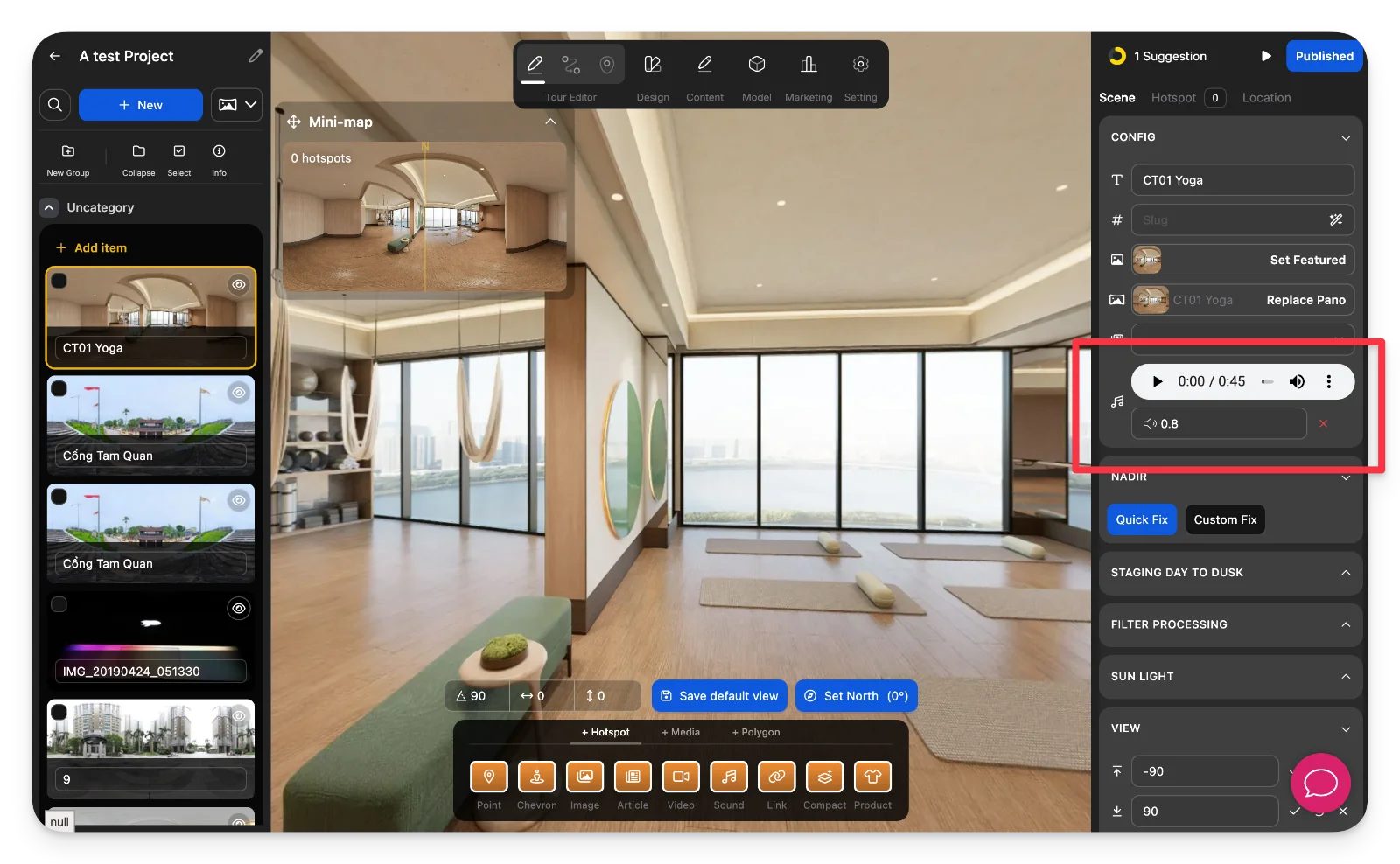
-
Select a Scene
Choose the scene where you want to add or change the background sound from the left panel. -
Upload Background Audio
In the right panel, find the Sound section and click Upload file .mp3 to add your audio file.
Update Background Sound for the Entire Tour
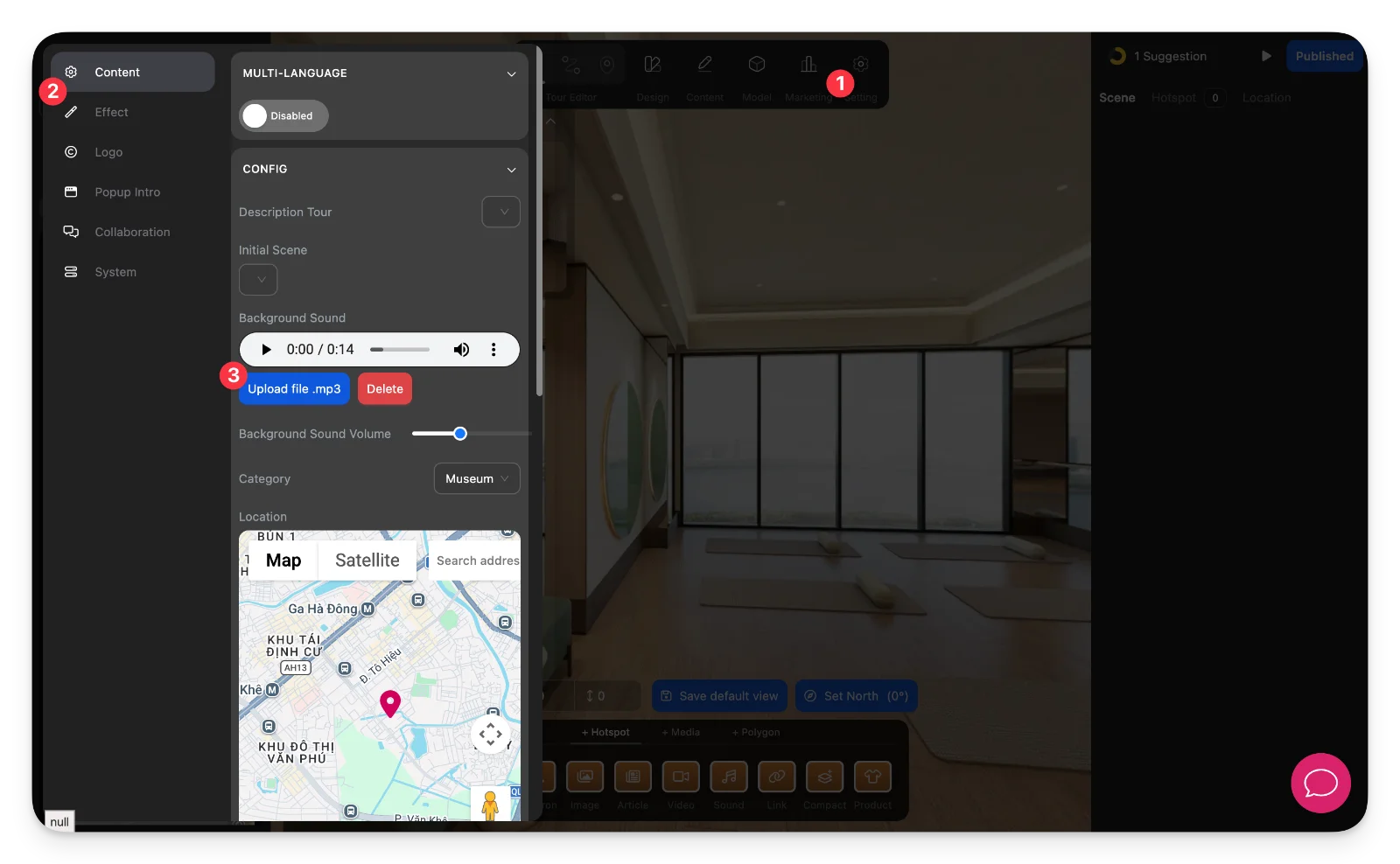
-
Open Tour Settings
Click the Setting icon in the top menu to access global tour settings. -
Upload Global Background Sound
In the Content section, locate Background Sound and upload your .mp3 file. Adjust volume if needed.
Notes
-
Scene-level sound will play when that specific scene is active.
-
Tour-level sound applies across all scenes unless overridden.
-
Multiple audio sources (scene sound, hotspot sound, and tour sound) can play simultaneously.
-
Be careful to avoid audio conflicts or overlapping sounds that may affect user experience.