
How to Change Your Tour URL (Slug)
This guide explains how to customize your virtual tour URL by changing the slug in Panoee. A clean, readable URL improves sharing and branding.
What is a Slug?
A slug is the last part of your tour URL.
Example:
https://tour.panoee.net/interesting-tour
→ interesting-tour is the slug
By default, Panoee generates a slug based on the project ID, which is not user-friendly. You can change it to something more readable and meaningful.
Steps
-
Open your project from the dashboard
From the project list, click on the tour you want to edit to enter the editor. -
Click the “Published” button
In the editor, click the Published button at the top-right corner to open the publish panel.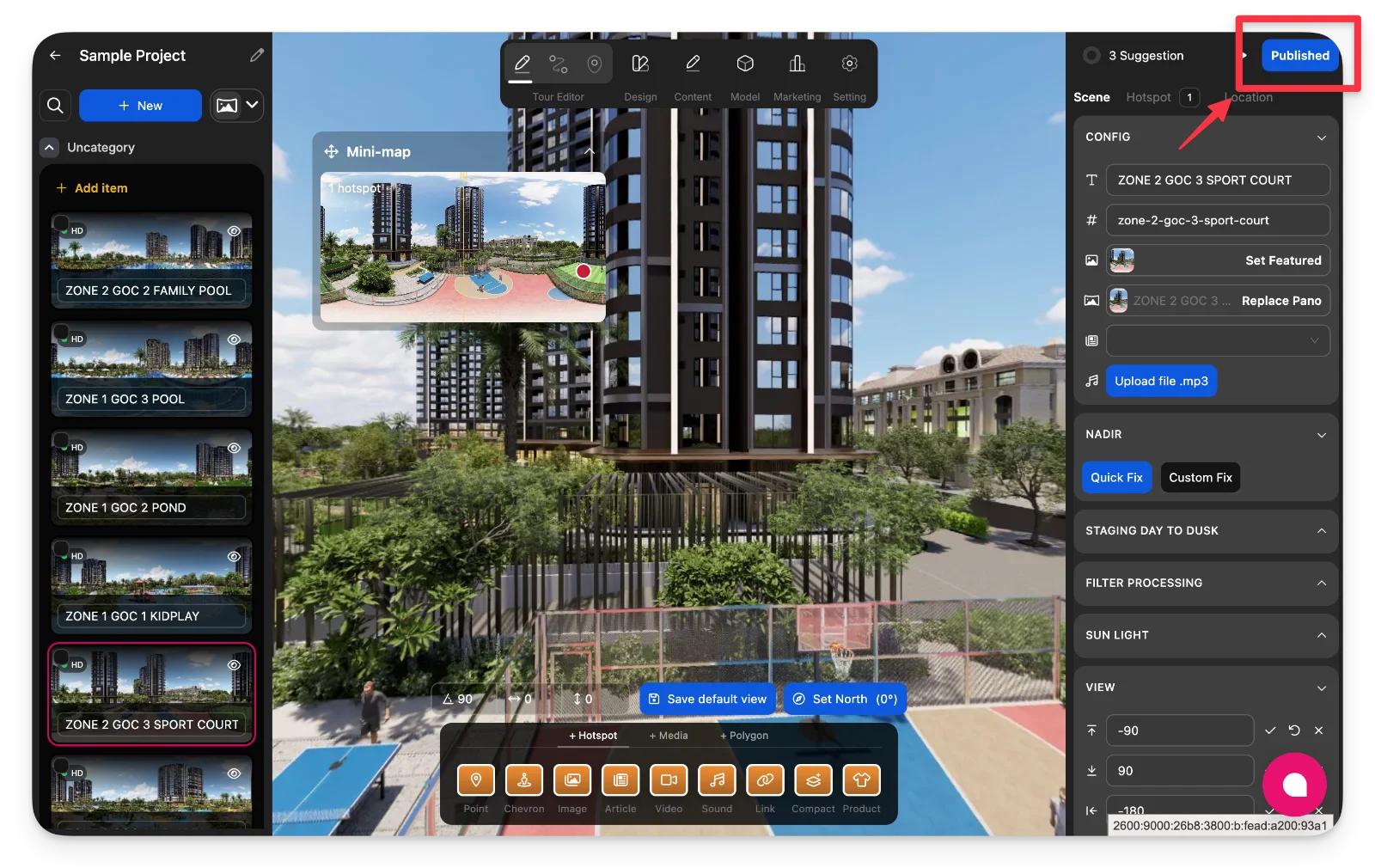
-
Click “Change Slug”
In the publish popup, click Change Slug to edit your tour URL.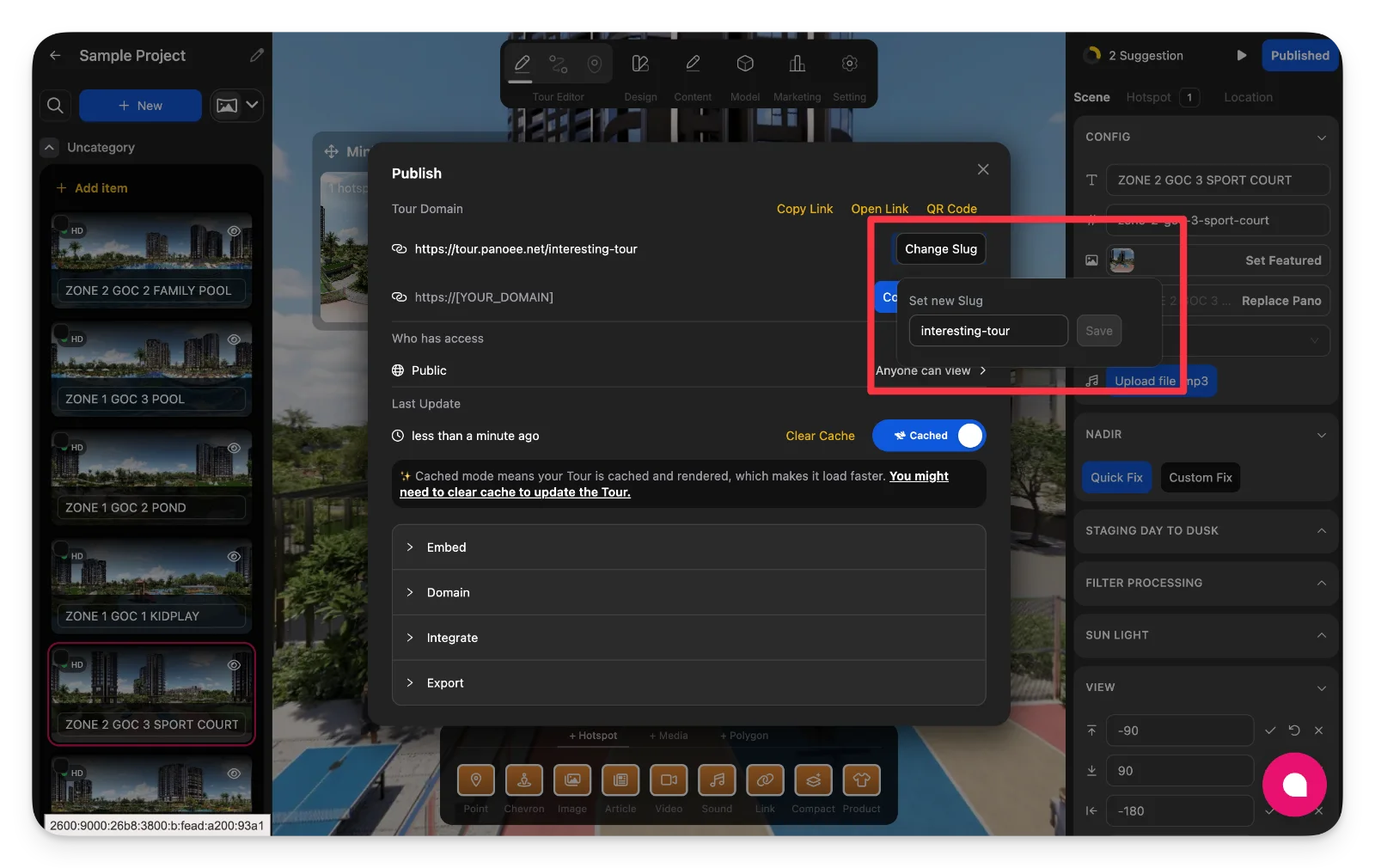
-
Enter a new slug
Type your desired slug and click Save.
The system will automatically format your input into a valid URL string.
Notes
-
The slug must be unique. If it already exists, you will need to choose another one.
-
Avoid spaces and special characters—use simple words and hyphens (e.g.,
villa-tour,showroom-360). -
Changing the slug updates your public tour URL immediately.
-
If your tour was already shared, make sure to update the new link.