
Set a Password for Your Virtual Tour
If you want to restrict access to your virtual tour and share it only with selected viewers, you can protect it with a password. This ensures that only people with the password can view the tour.
Steps
-
Open your project in the editor
From the dashboard, select your project to enter the tour editor. -
Click the “Published” button
In the top-right corner, click Published to open the publishing settings.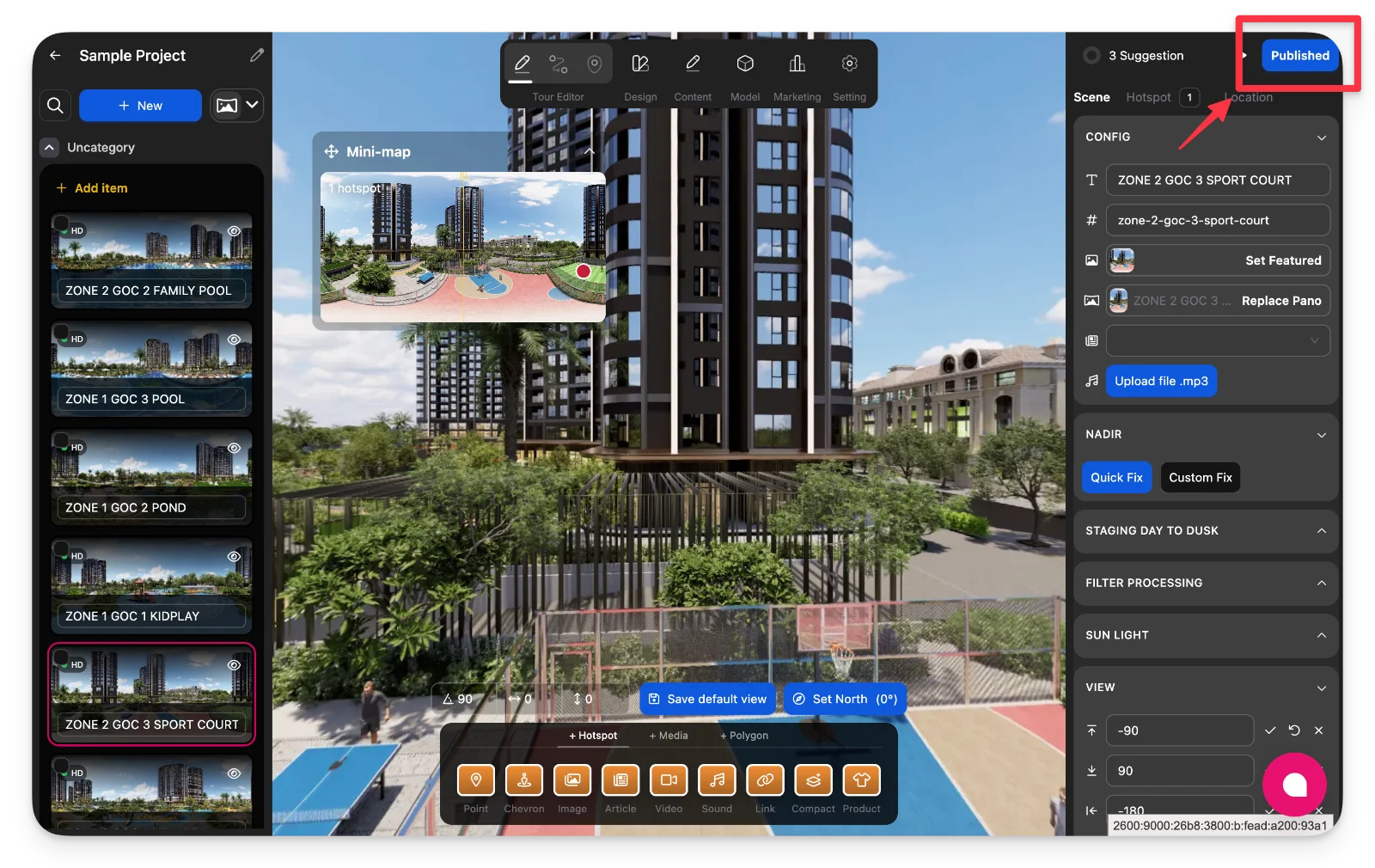
-
Change access to “Password access”
In the Who has access section, switch from Public to Password access.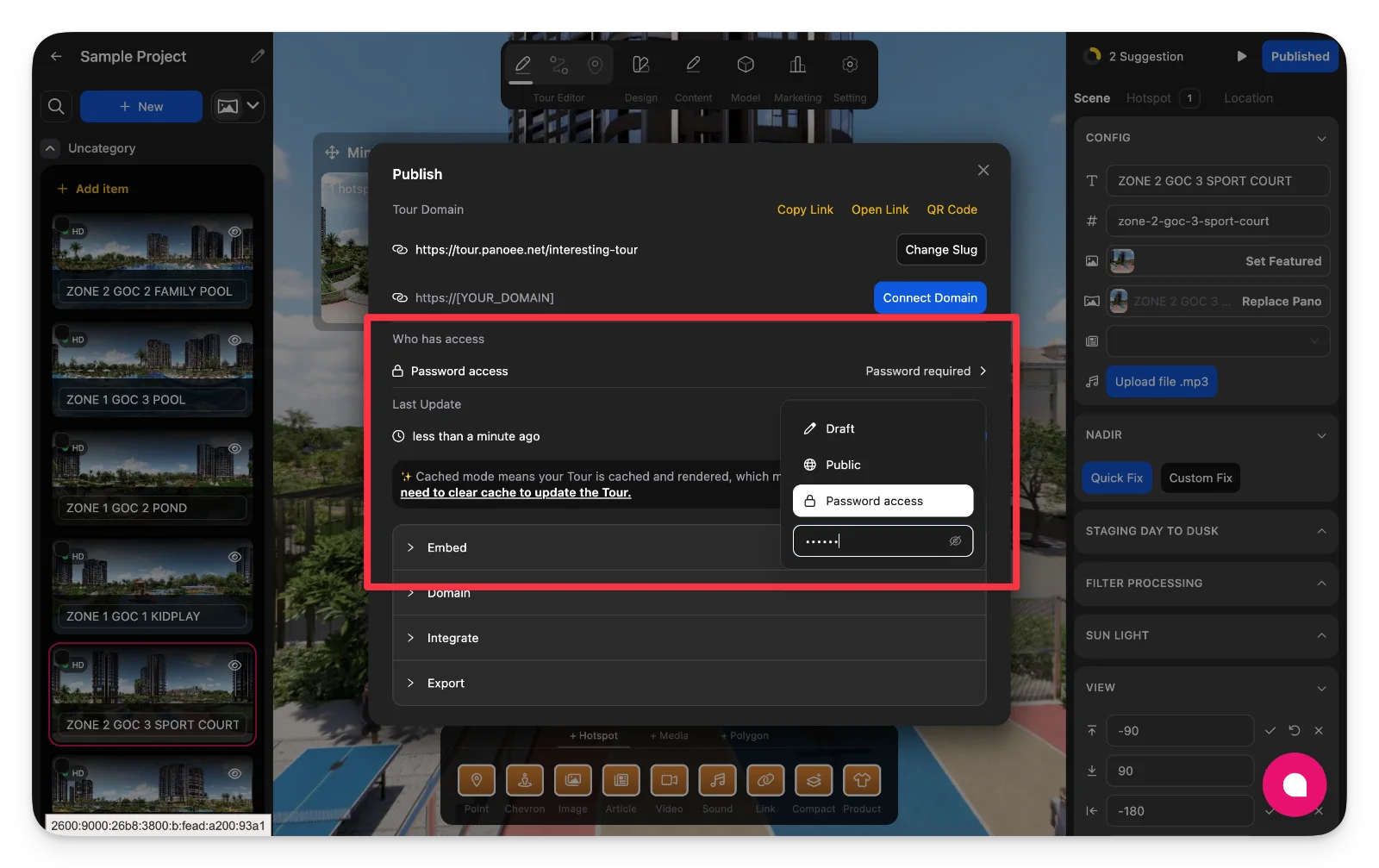
-
Enter a password
Input your desired password in the field provided. This password will be required to access the tour. -
Share the tour with password protection
Copy your tour link and share it along with the password.
Viewers will need to enter the password to access the tour.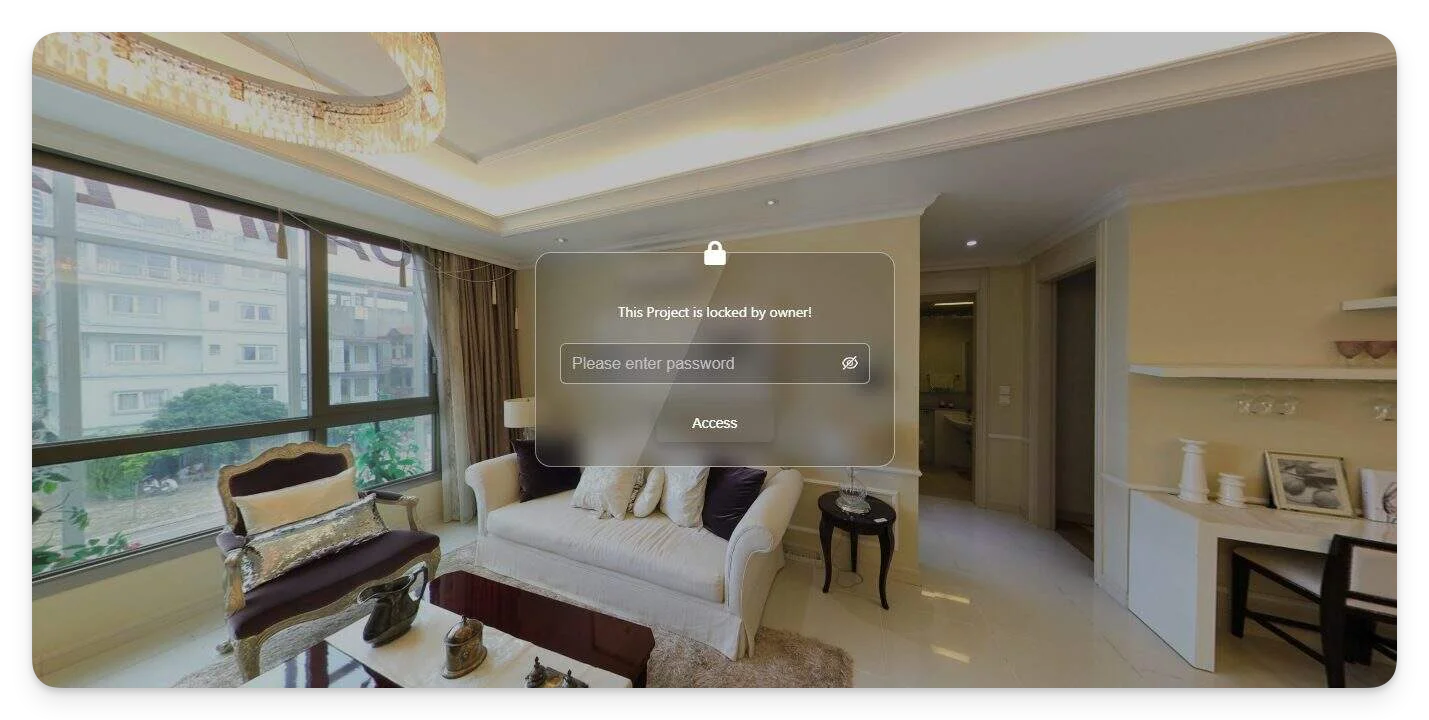
Notes
-
Use password protection when sharing tours privately with clients or internal teams.
-
Make sure to share the correct password along with the link.
-
You can change or remove the password anytime in the publish settings.
-
If access issues occur, ask users to refresh or re-enter the password.