
Buy Additional Storage in Panoee
Learn how to check your Panoee storage usage and buy additional storage from account settings.
Buy Additional Storage in Panoee
Storage usage affects how much project media and virtual tour data your account can keep in Panoee. The Subscriptions page includes a storage overview and options for buying additional storage.
Steps
-
Open Subscriptions
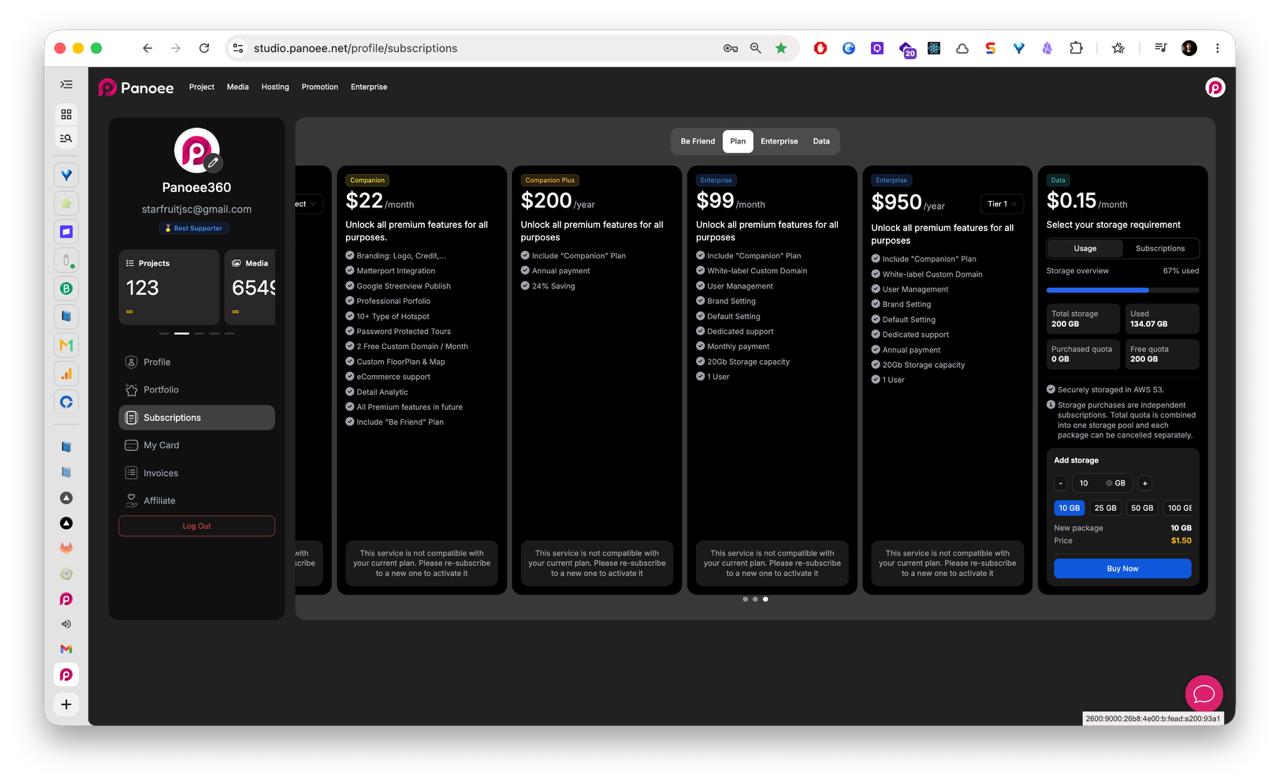
From the Panoee dashboard, open the account menu from your avatar in the top-right corner. Select Subscriptions from the account sidebar.
-
Review Storage Overview
Check the storage usage meter to see how much storage is used. The overview may show total storage, used storage, purchased quota, and free quota.
-
Open Add Storage
In the storage area, use Add storage to choose an additional storage package.
-
Choose a Storage Amount
Select the amount of storage you want to add, such as 10 GB, 25 GB, 50 GB, or 100 GB.
-
Review the Price
Check the new package summary and price before continuing.
-
Buy the Storage Package
Click Buy Now to purchase the selected storage package.
Notes
- Storage purchases may be separate from your main subscription plan.
- Review your used storage before buying so you select the right package size.
- Keep a valid payment card in My Card before purchasing additional storage.