
Manage Payment Cards in Panoee
Learn how to view, add, and remove saved payment cards in your Panoee account.
Manage Payment Cards in Panoee
Payment cards are used for Panoee subscriptions, storage purchases, and other paid services. You can manage saved cards from the My Card page in your account settings.
Steps
-
Open My Card
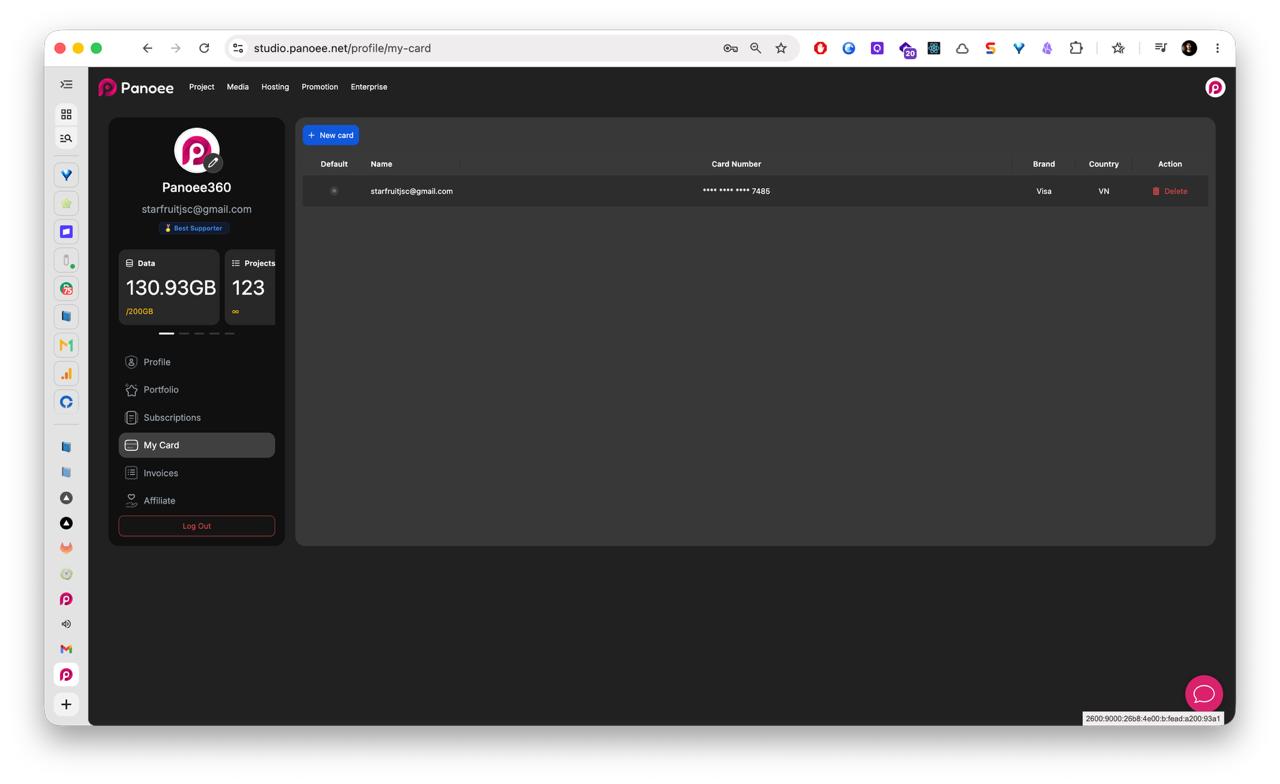
From the Panoee dashboard, open the account menu from your avatar in the top-right corner. Select My Card from the account sidebar.
-
Review Your Saved Cards
The My Card page lists your saved cards with the card owner, masked card number, card brand, country, and available actions. Panoee only displays masked card numbers for security.
-
Add a New Card
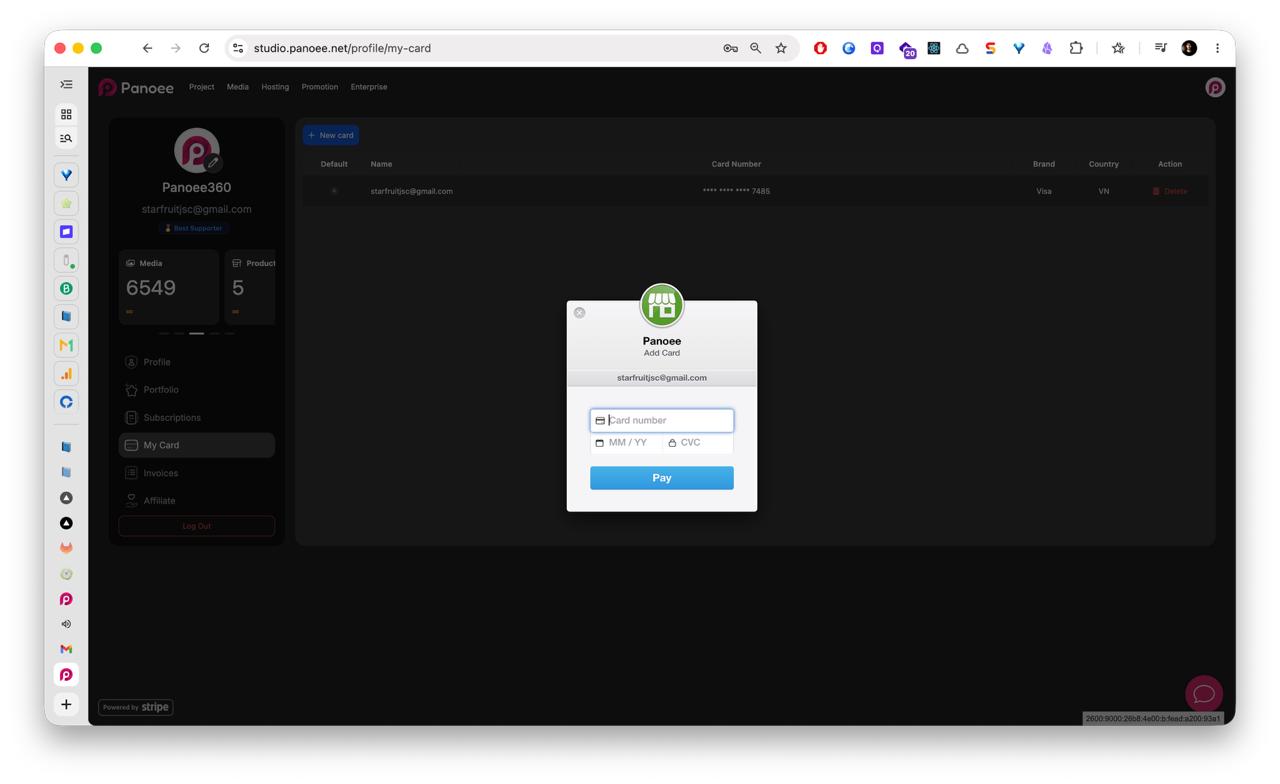
Click New card to open the add-card form.
-
Enter Card Details
In the Stripe-powered card form, enter the card number, expiration date, and CVC. Then click Pay to submit the card information.
-
Confirm the Card Appears
After the card is added, return to the My Card table and confirm that the new card appears in the list.
-
Remove a Saved Card
To remove a saved card, click Delete in the card row. Only delete a card if you no longer want Panoee to use it for future payments.
Notes
- Card entry is handled through Stripe.
- Panoee displays saved cards with masked numbers, brand, and country information.
- Make sure you keep at least one valid payment method if you have active subscriptions or paid services.