
View and Download Invoices in Panoee
Learn how to find successful and failed invoices and export invoice PDFs from your Panoee account.
View and Download Invoices in Panoee
The Invoices page helps you review payment history, check payment status, and export invoice PDFs for accounting or internal records.
Steps
-
Open Invoices
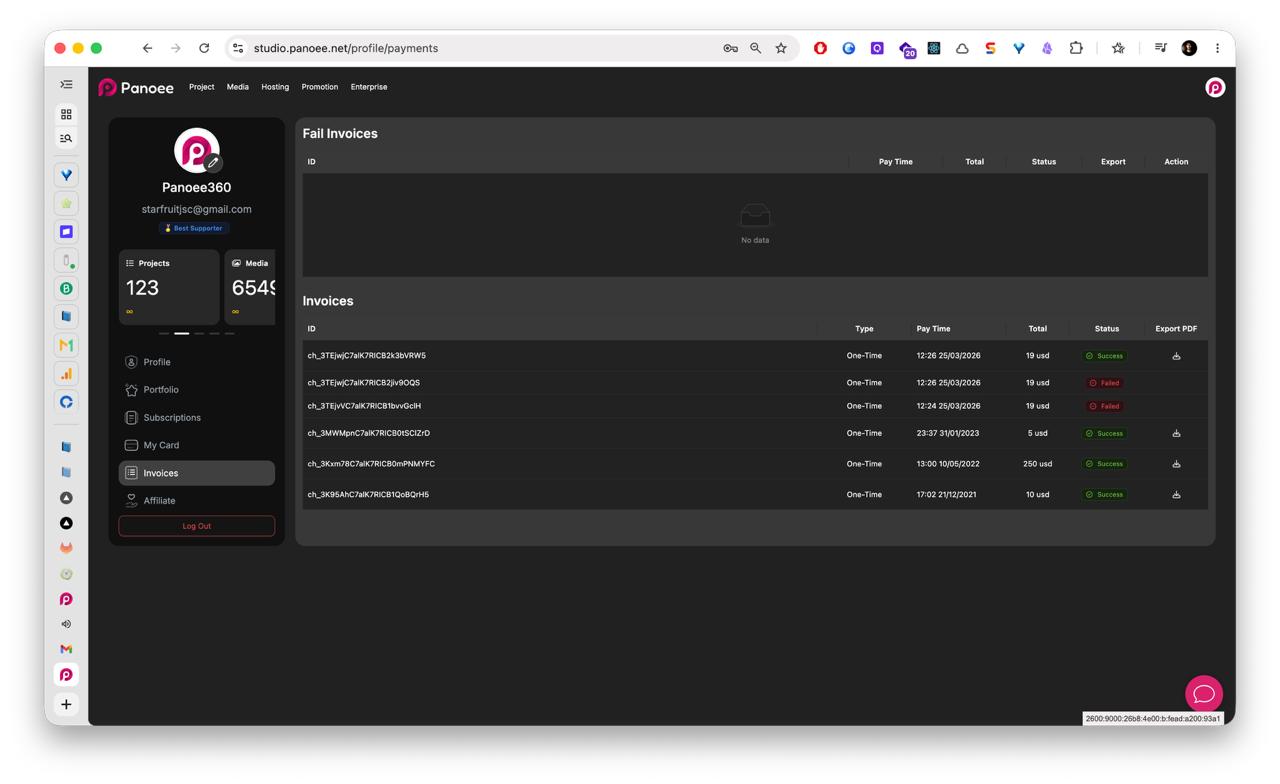
From the Panoee dashboard, open the account menu from your avatar in the top-right corner. Select Invoices from the account sidebar.
-
Check Failed Invoices
Review the Fail Invoices section first. If a payment failed, it may appear here with its ID, payment time, total, status, export option, and available action.
-
Review Invoice History
In the Invoices table, check each invoice by ID, type, payment time, total amount, and status. Successful payments are marked as Success.
-
Export an Invoice PDF
Use the Export PDF column to download the invoice file you need.
-
Use Status for Troubleshooting
If an invoice shows Failed, review the payment method or contact support with the invoice ID.
Notes
- Failed invoices and regular invoices may appear in separate sections.
- Invoice PDFs are useful for accounting, reimbursement, and business records.
- If a failed invoice is connected to an active subscription, check your saved payment card before trying again.