
Deactivate Your Panoee Account
Learn where to find the account deactivation option in Panoee and what to review before confirming it.
Deactivate Your Panoee Account
Account deactivation is a destructive account action. The confirmation screen warns that account data such as virtual tours, images, and storage capacity may be permanently deleted. Only continue if you are sure you no longer need the account data.
Steps
-
Open Profile Settings
From the Panoee dashboard, open the account menu from your avatar in the top-right corner. Select Profile from the account sidebar.
-
Find Deactivate Account
On the Profile page, scroll to the account action area and click Deactivate Account.
-
Review the Deactivation Warning
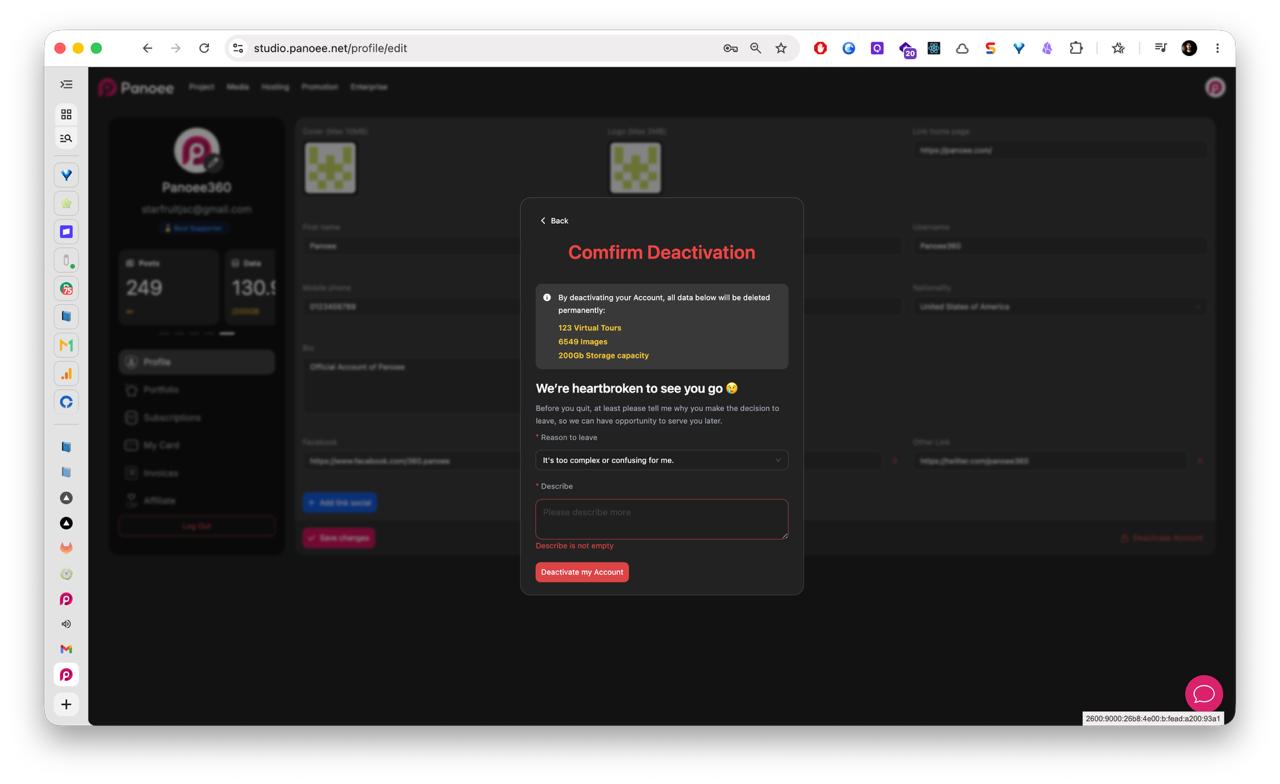
Read the confirmation screen carefully. Panoee shows a summary of account data that may be deleted, including virtual tours, images, and storage capacity.
-
Choose a Reason
Select the reason that best explains why you want to leave.
-
Add a Description
Enter additional details in the description field if required. The form may require a description before allowing deactivation.
-
Confirm or Go Back
Click Deactivate my Account only if you are sure you want to continue. If you are not sure, click Back and keep the account active.
Notes
- Deactivation appears to be permanent based on the warning shown in Panoee Studio.
- Do not use this flow when you only want to update profile information, billing details, or subscription settings.
- Before deactivating, export any data, invoices, or project information you may need later.