
Manage Your Profile in Panoee
Learn how to update your Panoee profile information, branding images, contact details, and social links from account settings.
Manage Your Panoee Profile
Your Panoee profile stores the account information, branding images, contact details, and social links that identify you inside Panoee Studio. Some profile information can also support your public portfolio page, so keep it accurate before sharing your work with clients or visitors.
Steps
-
Open Account Settings
From the Panoee dashboard, open the account menu from your avatar in the top-right corner. Select Profile to open your profile settings.
-
Update Your Cover and Logo
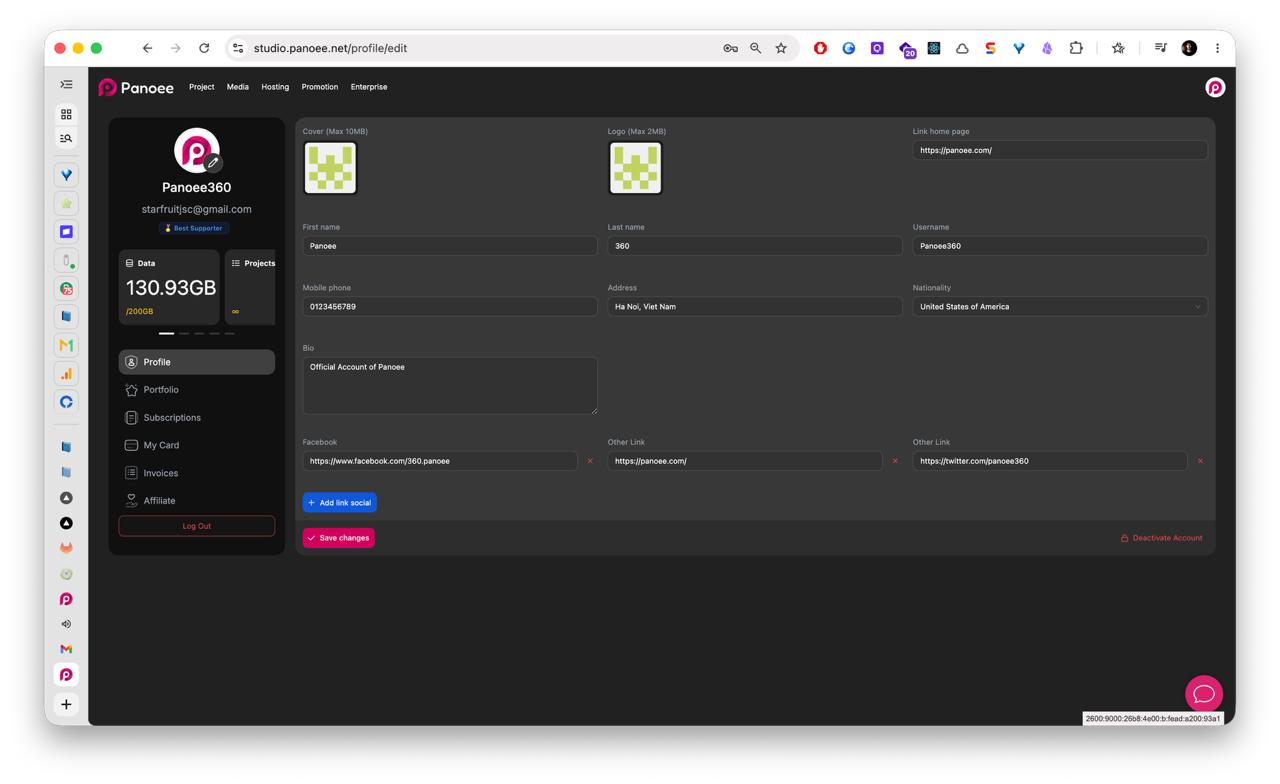
In the Profile page, upload or replace your cover image and logo. The cover image supports files up to 10 MB, and the logo supports files up to 2 MB.
-
Edit Your Basic Profile Details
Fill in or update your name, username, mobile phone, address, nationality, homepage link, and bio. These details help keep your account information clear and can be used as public-facing profile information when you set up a portfolio.
-
Add Social and Contact Links
Add your Facebook link or another contact link. To include more public links, click Add link social and enter the additional link details.
-
Save Your Changes
After reviewing your profile information, click Save changes. Panoee will store the updated profile details in your account.
-
Check Your Portfolio Profile Information
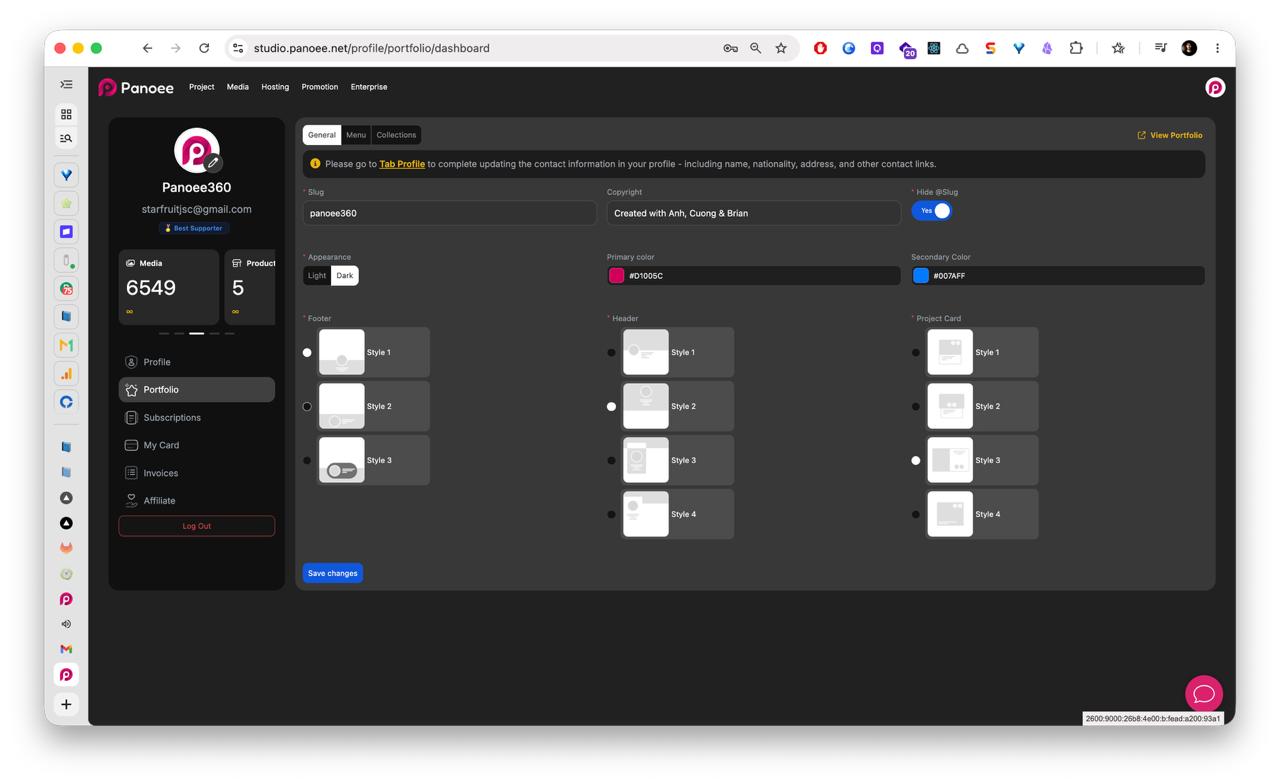
If you use Panoee Portfolio, open Portfolio from the account sidebar. The General tab reminds you to complete your Profile information, including name, nationality, address, and contact links, before using the public portfolio page.
-
Preview Your Public Portfolio
Click View Portfolio to check how your profile and portfolio settings appear on your public portfolio page. Your public portfolio URL follows this format:
https://portfolio.panoee.com/{username}
Notes
- Your username is important because it can be used in your public portfolio URL, such as
https://portfolio.panoee.com/panoee360. - Profile images should be prepared before uploading so they look clean on both Studio and public pages.
- The Deactivate Account button is a separate account lifecycle action. Do not use it when you only want to edit profile information.
- If you update profile information for public use, open your portfolio page after saving to confirm the visitor-facing details look correct.