
Add and Customize CTA Buttons in a Panoee Tour
Learn how to create call-to-action buttons for phone, email, links, WhatsApp, and Viber in a Panoee virtual tour.
Add and Customize CTA Buttons in a Panoee Tour
Call-to-action buttons help turn virtual tour visitors into leads, calls, messages, bookings, or website visits. Panoee lets you create CTA buttons directly inside the tour editor and customize their label, icon, scale, action type, and destination value.
Before You Start
- Open the project you want to edit in Panoee Studio.
- Prepare the contact destinations you want to use, such as phone number, email address, website URL, WhatsApp number, or Viber contact.
- Decide which CTA should be most important for visitors.
Steps
-
Open the Tour Editor
Open your project in Panoee Studio and enter the tour editor.
-
Open Call To Action
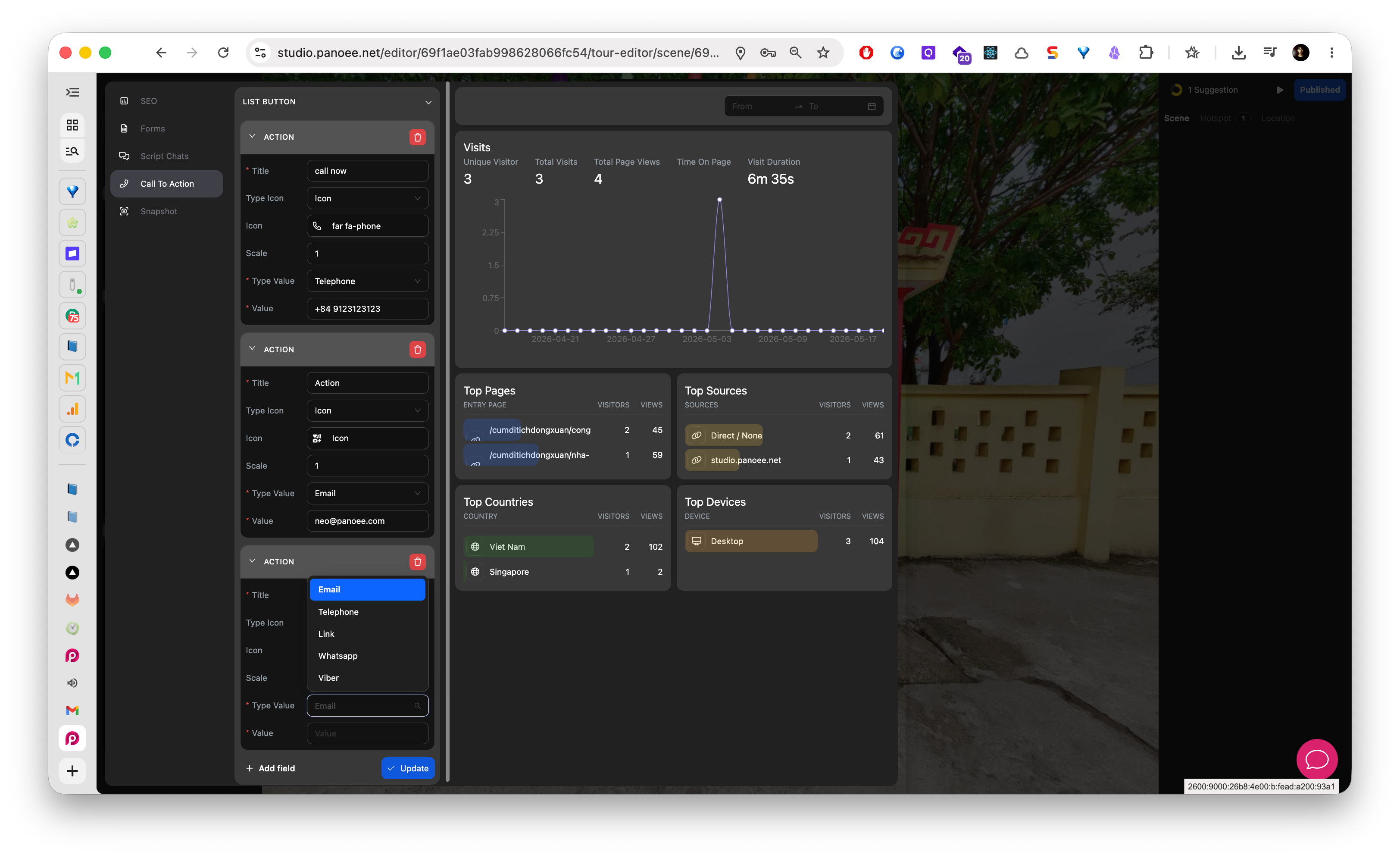
In the marketing sidebar, select Call To Action. Panoee shows the list of CTA button actions.
-
Add a New CTA Button
Click Add Button to create a new action block. Expand the action block if the fields are collapsed.
-
Enter the Button Title
Fill in Title with the text visitors should see, such as Call Us, Book a Visit, Contact Sales, or Open Website.
-
Choose the Icon Type and Icon
Use Type Icon and Icon to choose an icon style that matches the button action. For example, use a phone icon for a call CTA and a message icon for chat.
-
Adjust the Icon Scale
Use Scale to control the icon size. Keep the icon readable without making it visually dominate the tour interface.
-
Select the CTA Type
Choose the action type that matches the destination you want to create.
CTA Type Use It For Email Opening an email draft to your team. Telephone Starting a phone call on supported devices. Link Opening a booking page, website, form, or landing page. WhatsApp Starting a WhatsApp conversation. Viber Starting a Viber conversation. -
Enter the Destination Value
Fill in Value with the destination for the selected type. Use a complete URL for links and a valid contact value for phone, email, WhatsApp, or Viber actions.
-
Save the CTA Button
Click Update to save the CTA settings.
-
Test the CTA
Open the tour as a visitor and click the CTA button. Confirm that it opens the correct destination before sharing the tour publicly.
Notes
- Keep CTA labels short so they remain readable in the tour interface.
- Use one primary CTA when possible. Too many competing actions can make the visitor experience less focused.
- Test mobile behavior for phone, WhatsApp, and Viber actions because these CTAs depend on the visitor's device and installed apps.
- Use Delete only when you are sure the CTA is no longer needed.