
Preview, Share, and Manage a Hosted Static Tour
Learn how to preview a hosted static tour, copy its public URL, manage hosted files, and safely clear files from Panoee Hosting.
Preview, Share, and Manage a Hosted Static Tour
When a Panoee Hosting project contains a valid index.html file, you can preview the hosted output and share its public URL. For self-hosted AWS S3 projects, the public URL is a direct S3 public link generated for the hosted files.
Before You Start
- Create a Panoee Hosting project.
- Upload a complete static package with
index.html. - Confirm the project is ready before sharing the link.
Steps
-
Open the Hosting Project
Go to Hosting in Panoee Studio and select the project you want to review.
-
Preview the Hosted Output
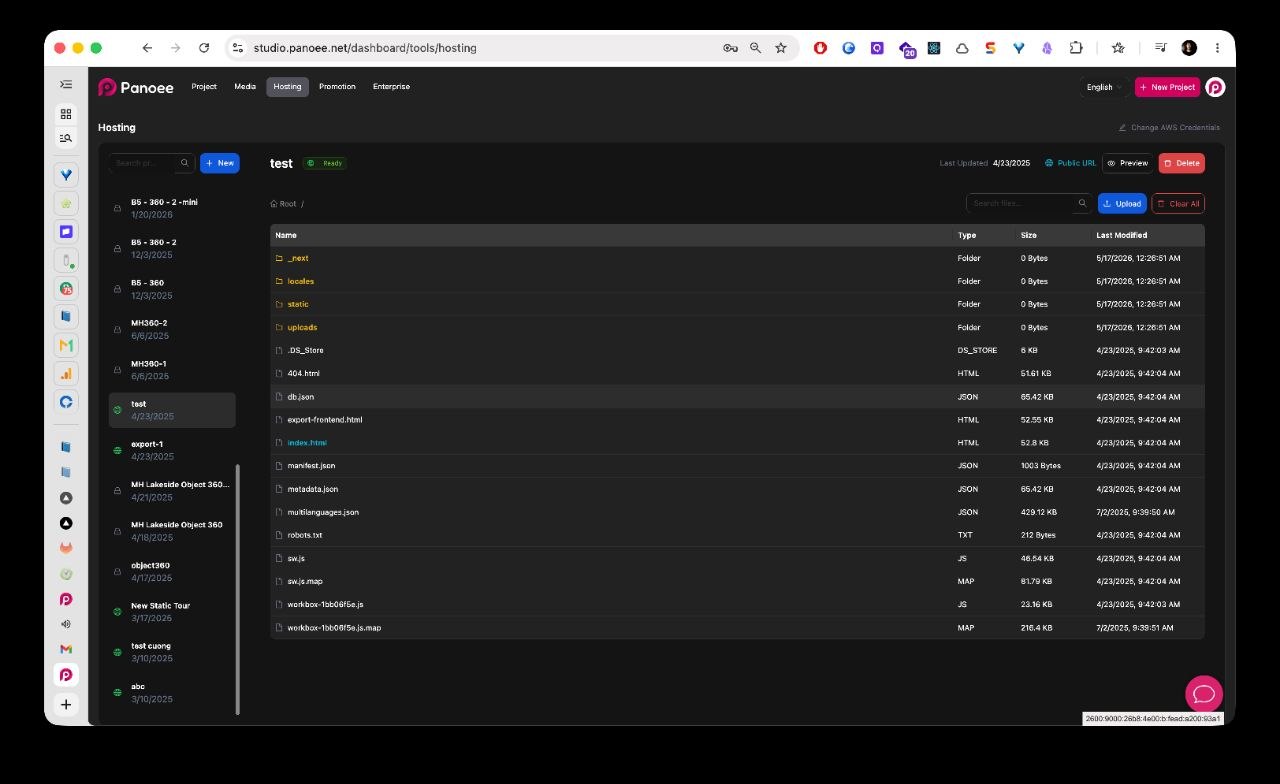
Click Preview to open and check the hosted static tour. Review the tour in the browser and confirm that scenes, media, buttons, scripts, and navigation load correctly.
-
Open the Public URL
Click Public URL when the project is ready. Use this link when you need to send the hosted tour to clients, stakeholders, or viewers.
-
Share the Link
Copy the generated public URL and share it with the intended audience. For a self-hosted AWS S3 project, this is a direct public S3 link.
-
Search Hosted Files
Use the file search field when you need to find a specific file or folder inside the hosted package.
-
Preview a File
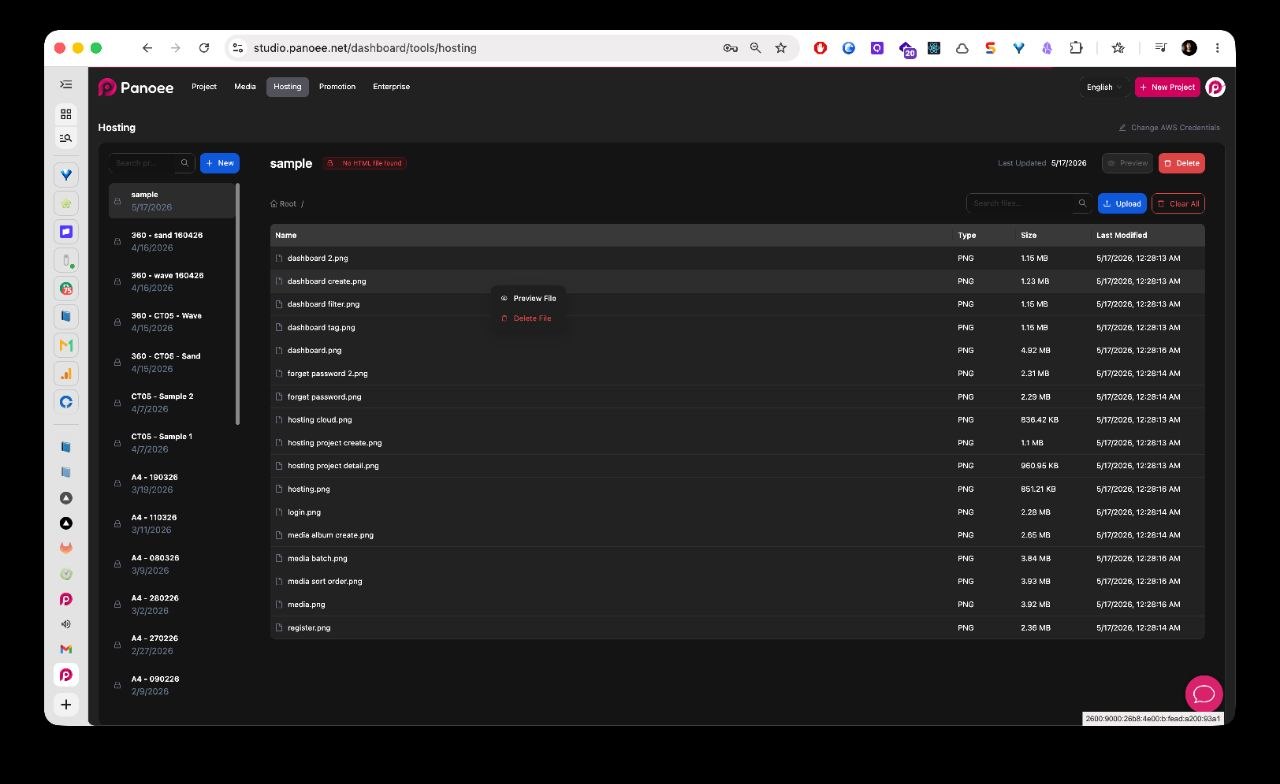
Open the action menu for a file and choose Preview File when you need to inspect a hosted file directly.
-
Delete a Single File
Use Delete File from the file action menu when you only need to remove one hosted object. Review the selected file before confirming.
-
Clear All Files
Use Clear All only when you want to remove all hosted files from the selected project.
For self-hosted AWS S3 projects, Clear All deletes the actual objects from the connected bucket. This action can break the public tour immediately and may not be recoverable unless you have a backup of the export.
-
Upload a Replacement Package
After clearing or deleting files, upload the updated static package again. Make sure the new package includes
index.htmlbefore sharing the public URL again.
Notes
- Always preview the hosted tour before sending the public URL.
- Keep a local backup of the static export before deleting files or using Clear All.
- For self-hosted AWS S3 projects, file cleanup changes the real contents of the connected bucket.
- If the public tour stops loading after cleanup, upload the complete static package again and confirm that
index.htmlis present.