
Set SEO Metadata and Preview Image for a Panoee Virtual Tour
Learn how to update SEO title, description, favicon, Google Analytics ID, and preview image settings for a Panoee virtual tour.
Set SEO Metadata and Preview Image for a Panoee Virtual Tour
Panoee Studio lets you prepare a virtual tour for search engines and link sharing from the tour editor. Use the SEO settings to add a clear title, description, favicon, and preview image so the published tour looks more professional when it appears in search results or social previews.
Before You Start
- Open the project you want to edit in Panoee Studio.
- Make sure the tour information you want to show publicly is ready.
- Prepare a favicon and preview image if you want to use custom assets.
Steps
-
Open the Tour Editor
In Panoee Studio, open your project and enter the tour editor. Select the scene or tour area where the marketing settings are available.
-
Open SEO Settings
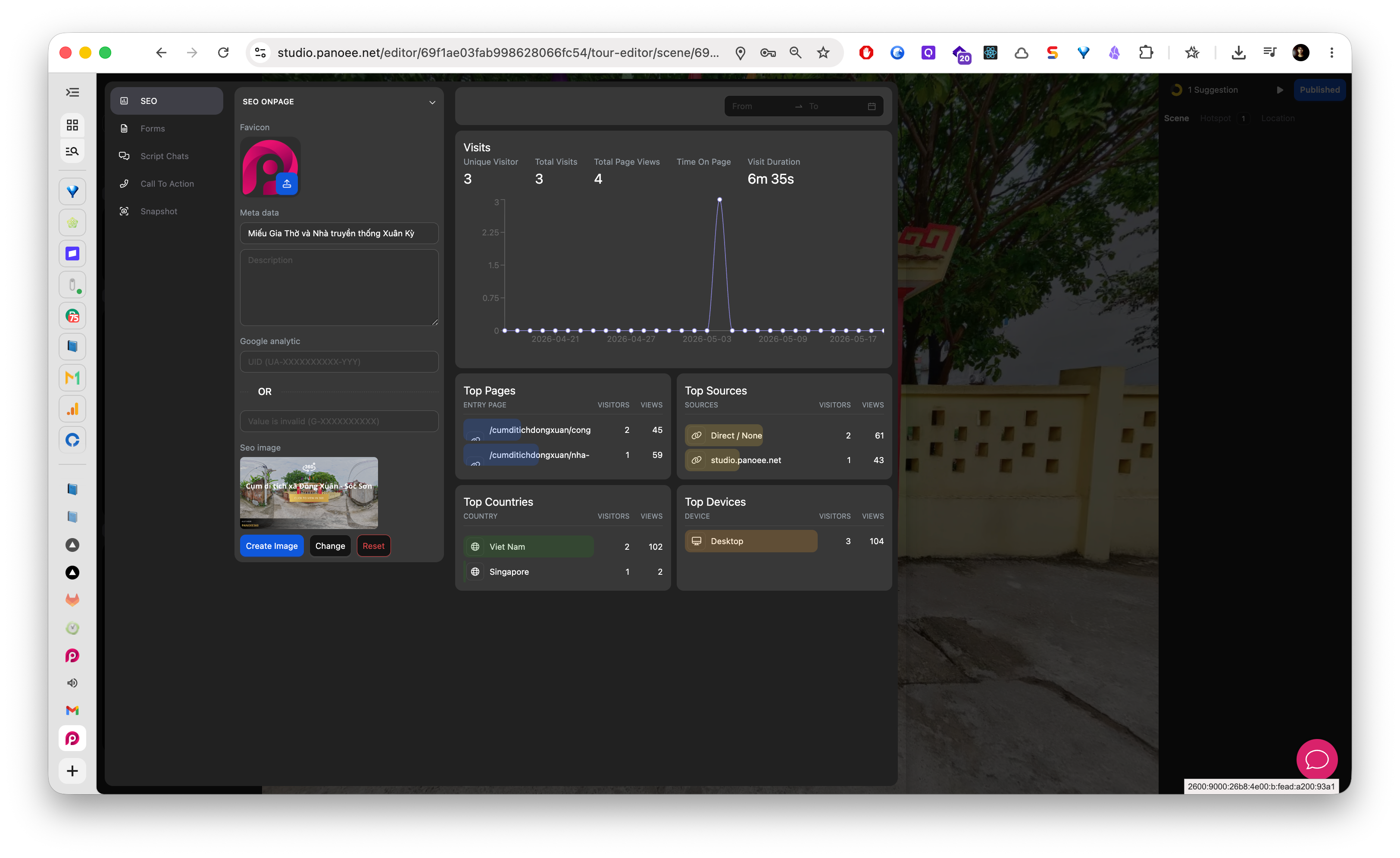
In the marketing sidebar, select SEO. Panoee shows the SEO Onpage settings on the left side of the editor.
-
Add a Favicon
In the Favicon field, upload or choose the icon you want browsers to show for the published tour page.
-
Enter the Meta Title
Fill in Meta Data with the title you want visitors and search engines to associate with the tour. Use a clear name that describes the property, venue, product, or destination.
-
Write the Description
Add a short description that explains what visitors can explore in the virtual tour. Keep it specific and useful instead of repeating only keywords.
-
Create or Change the SEO Image
Use Create Image when you want Panoee to generate a preview image from the tour. Use Change when you already have a custom image prepared. Use Reset if you want to remove the current custom image and return to the default state.
-
Save the SEO Settings
Click Update to save the changes. Review the saved settings before sharing or publishing the tour link.
Recommended Metadata
| Field | Recommendation |
|---|---|
| Favicon | Use a simple brand icon that remains readable at small size. |
| Meta title | Include the project, place, or tour name. |
| Description | Summarize the visitor value in one or two short sentences. |
| SEO image | Use a clear tour preview image with the main visual subject visible. |
Notes
- SEO metadata helps public tours look clearer in search and link previews, but search engines may take time to update their results.
- Use a preview image that represents the actual tour, not a generic brand graphic.
- If you change the tour positioning later, update the title, description, and preview image together so the public presentation stays consistent.