
Organize, Upload, Find, and Move Media in Panoee
Learn how to create media albums, upload files, find and sort media, and move selected media between albums in Panoee Studio.
Organize, Upload, Find, and Move Media in Panoee
Panoee Studio includes a Media Library for storing and organizing panorama images and other tour assets before you use them in a virtual tour. Use albums to keep large media collections structured, upload files into the right location, then use search, sorting, and move actions to keep the library easy to manage.
Steps
-
Open Media
Sign in to Panoee Studio and open Media from the top navigation. The Media Library shows the album sidebar on the left and the selected album contents on the right.
-
Choose the Media Source
In the album sidebar, choose the media source you want to manage. Use Pano for panorama media. Use Asset when you need to manage asset files available in that source.
-
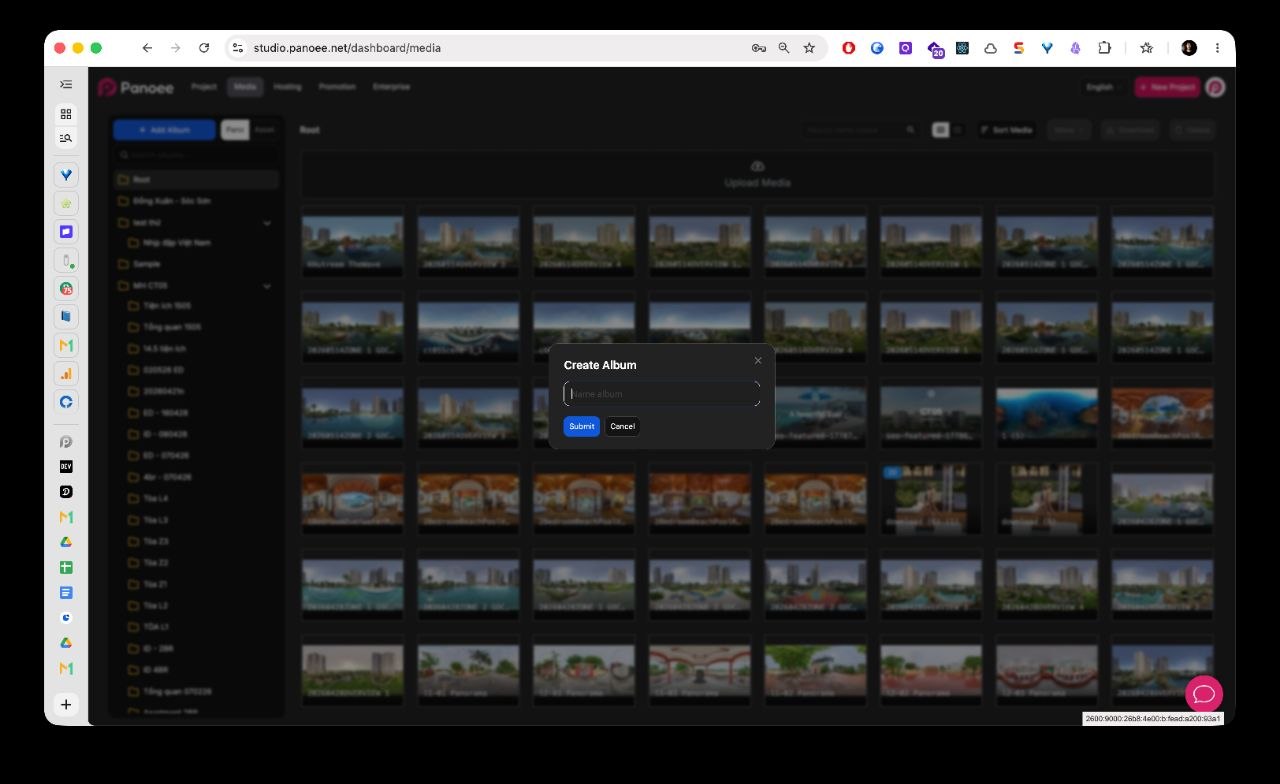
Create an Album
Click + Add Album. In the Create Album modal, enter a clear album name, then click Submit.
-
Select an Album
Choose the album or nested folder where you want to store the uploaded media. The current album name appears above the media grid.
-
Search Albums When Needed
Use Search Album... when the sidebar contains many folders. This helps you find the correct project, building, unit type, or tour section before uploading.
-
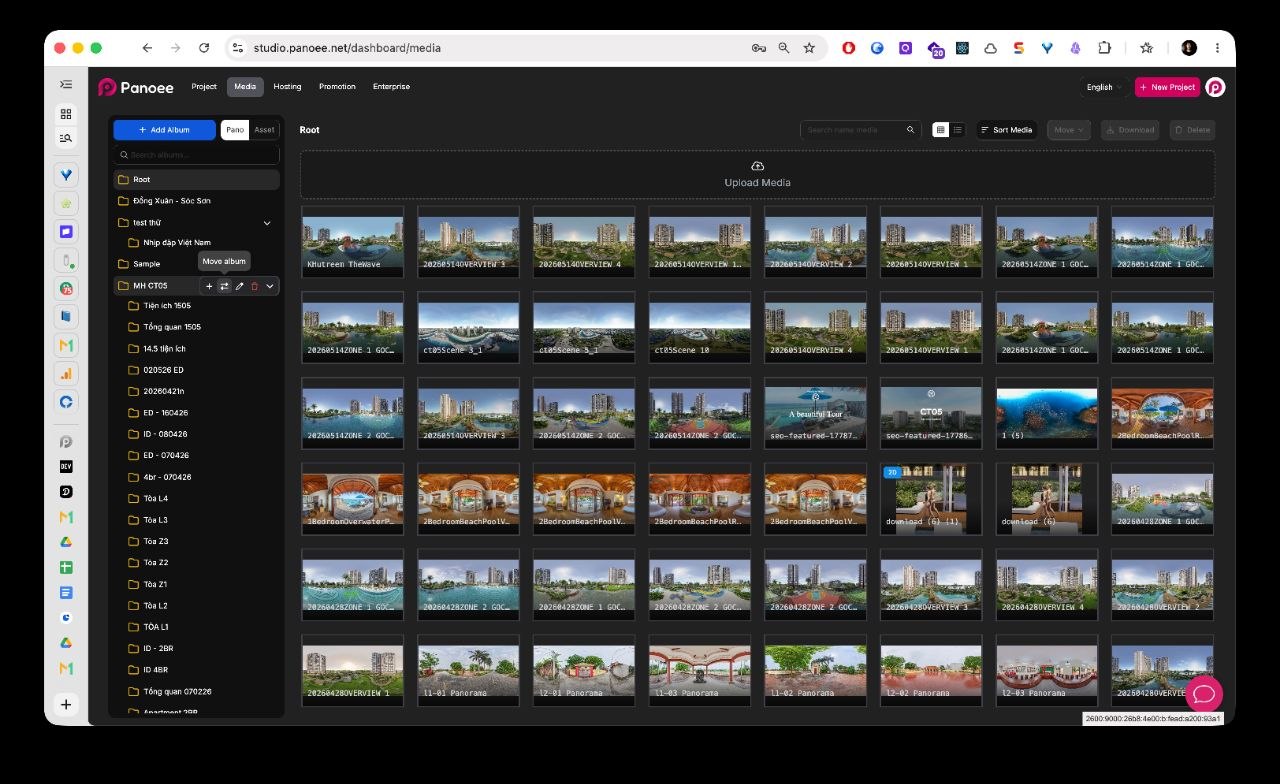
Upload Media
In the main Media area, click the Upload Media drop zone and select the files you want to upload. You can also use the drop zone as the target area when uploading supported files from your computer.
-
Check the Uploaded Files
After upload, confirm that the files appear as thumbnails in the selected album. Each media card shows a preview and filename so you can verify that the right files were added.
-
Search Uploaded Media
Use Search Media... to find files inside the selected album. Media search filters the items in the main media area, while album search filters the folder list in the sidebar.
-
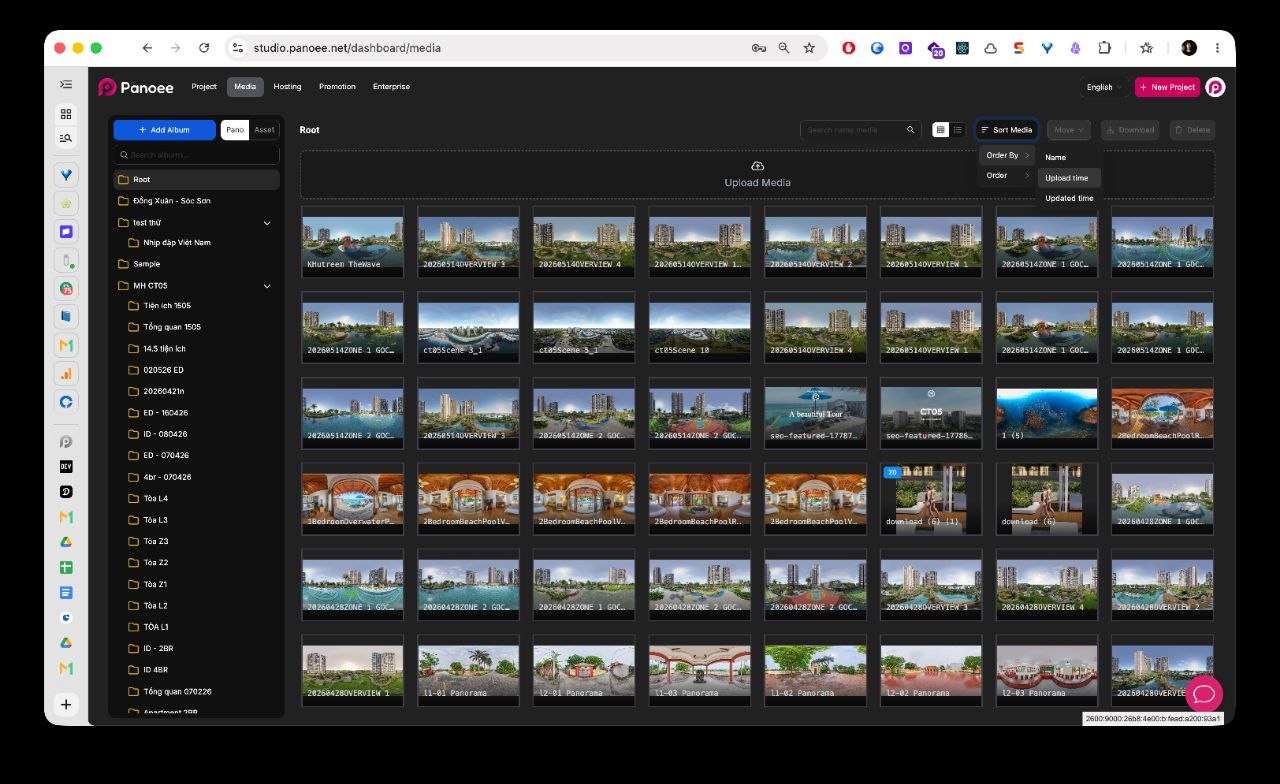
Sort the Media Grid
Click Sort Media and choose the order that helps you review the current album. You can sort by name, upload time, or updated time.
-
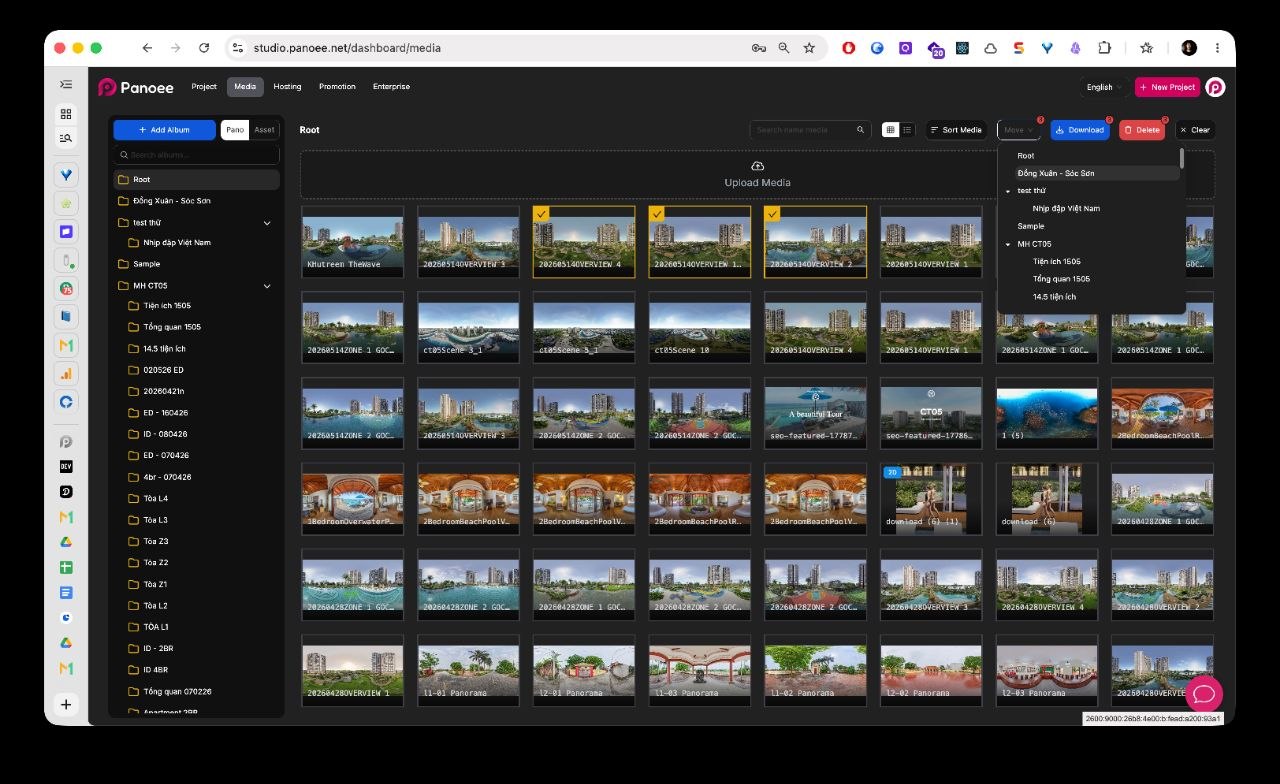
Select Media to Organize
Click the checkbox on one or more media thumbnails. Panoee shows the number of selected items and displays bulk actions above the grid.
- Move Selected Media
Click Move, then choose the destination album or folder from the move menu. Use this when files were uploaded into the wrong album or when you need to reorganize a large media library after import.
Notes
- Create albums before uploading large media batches so files are stored in the right place from the beginning.
- Use short, consistent album names for projects, locations, buildings, units, or tour sections.
- Album search filters the folder list. Media search filters files in the selected media area.
- Use sorting before bulk selection when you need to review recent uploads or find older files.
- Downloading and deleting media are separate workflows because they have different intent and risk.