
Add Google Analytics Tracking to a Panoee Tour
Learn how to connect a Google Analytics tracking ID to a Panoee virtual tour from the SEO settings.
Add Google Analytics Tracking to a Panoee Tour
Use Google Analytics tracking when you want to measure tour traffic in your own analytics account. Panoee includes a Google Analytics field inside the tour editor SEO settings, so marketing teams can connect external reporting without adding a separate landing page.
Before You Start
- Open the project you want to track in Panoee Studio.
- Prepare the Google Analytics tracking ID from your Google Analytics property.
- Use the correct ID format accepted by your analytics setup.
Steps
-
Open the Tour Editor
Open your Panoee project and enter the tour editor.
-
Open SEO Settings
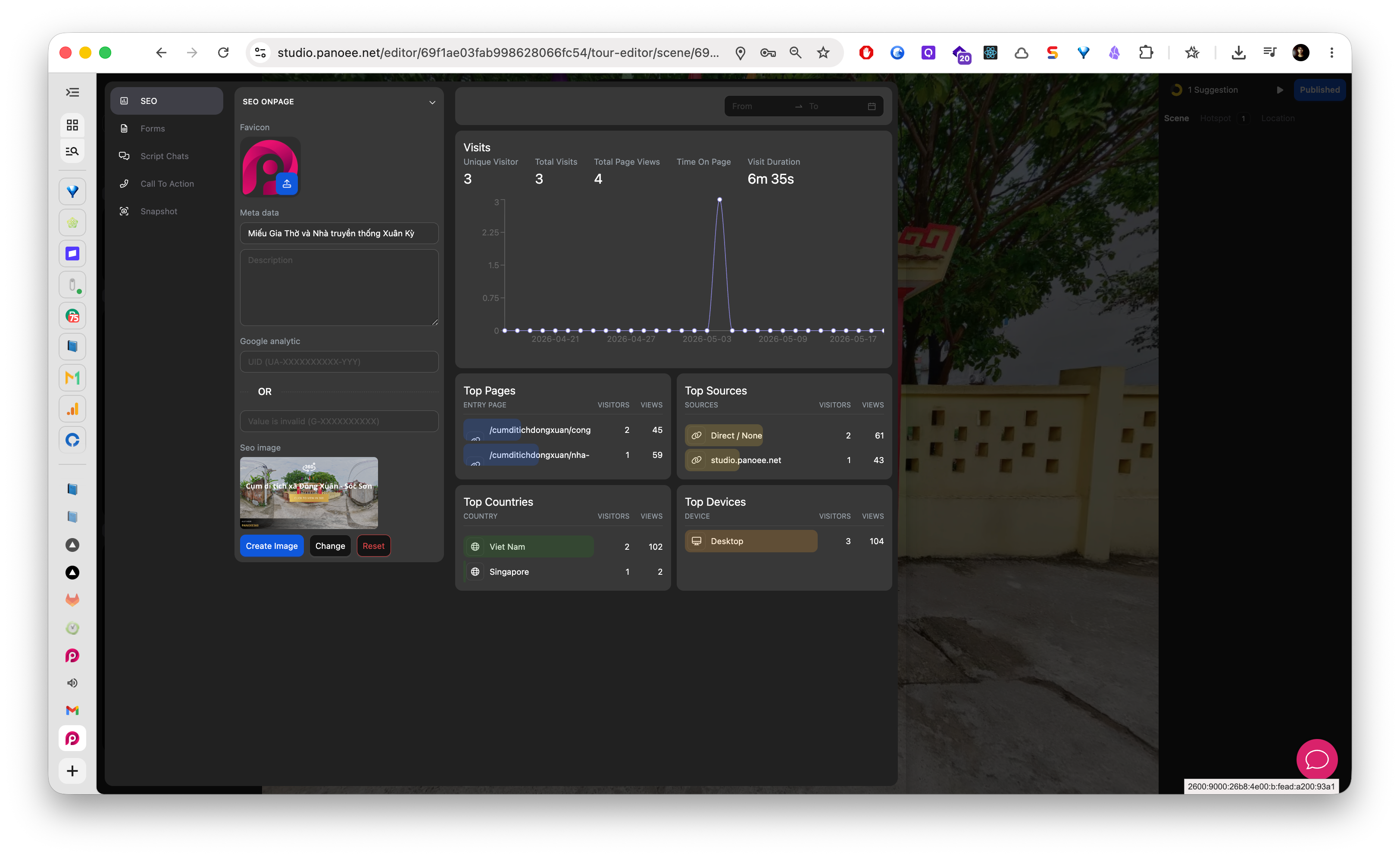
Select SEO from the marketing sidebar. The Google Analytics field appears with the SEO Onpage settings.
-
Find the Google Analytics Field
Locate Google analytic in the SEO settings. This field is used for the tracking ID that should be loaded on the published tour.
-
Enter the Tracking ID
Paste the tracking ID into the field. Check the value carefully before saving, because an invalid ID may prevent external analytics from recording the tour correctly.
-
Save the Settings
Click Update to save the Google Analytics configuration.
-
Test After Publishing
Open the published tour and confirm activity in Google Analytics after traffic is available. Real-time reporting may help confirm that the tour is sending visits to the correct property.
Tracking ID Notes
| Tracking Type | Example Format |
|---|---|
| Universal Analytics | UA-XXXXXXXXX-YY |
| Google Analytics 4 | G-XXXXXXXXXX |
Notes
- Use the tracking ID from the property that should own the tour reporting.
- If the field shows a validation message, check for spaces, missing characters, or the wrong ID format.
- Panoee also shows built-in analytics in the editor. Google Analytics is useful when you need reporting inside a wider marketing analytics workflow.