
Download Media from the Panoee Media Library
Learn how to select and download media files from the Panoee Studio Media Library.
Download Media from the Panoee Media Library
Use the Media Library download action when you need to back up media, hand files to a teammate or client, or reuse selected assets outside Panoee Studio.
Steps
-
Open Media
Sign in to Panoee Studio and open Media from the top navigation.
-
Choose the Source and Album
In the sidebar, choose the media source, such as Pano or Asset, then open the album that contains the files you want to download.
-
Find the Media
Use Search Media... or Sort Media if the album contains many files. This helps you locate the correct media before selecting it.
-
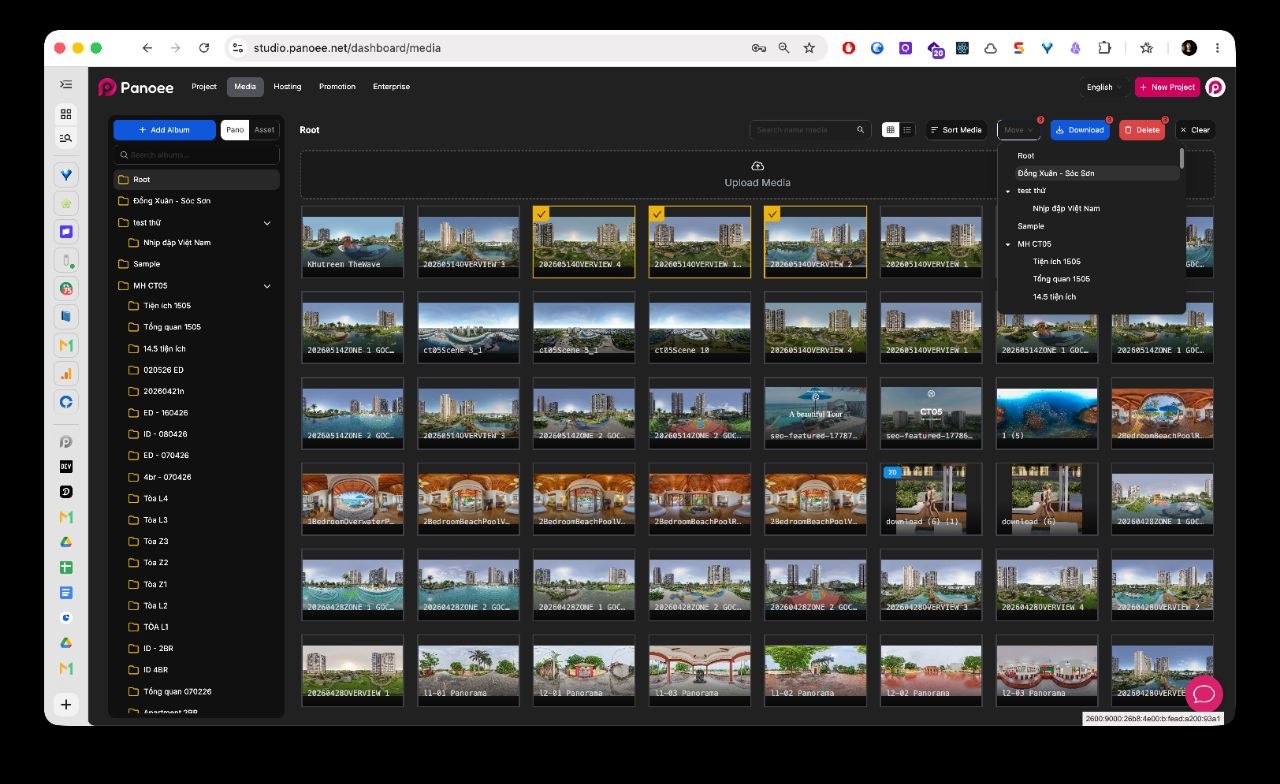
Select Media Files
Click the checkbox on each media thumbnail you want to download. Panoee shows the selected item count above the grid.
-
Download the Selection
Click Download in the bulk action bar. Follow your browser download prompt if one appears.
-
Check the Downloaded File
After the download finishes, check your browser downloads folder and confirm that the expected media files were saved.
Notes
- Select only the files you need before clicking Download.
- If you need to download many files, sort or search first so the selection is easier to verify.
- Browser behavior may vary depending on your download settings.
- If Panoee packages multiple files into one download, keep the exported file name clear when storing or sharing it.