
Popup Intro
Set up a welcome popup in Panoee to show an image, video, or tour description before viewers enter a virtual tour.
Popup Intro lets you show a welcome screen before viewers start exploring a Panoee virtual tour. You can display a desktop/mobile image, a desktop/mobile video, or a selected tour description article, then let viewers close the popup and begin the tour.
Steps
-
Open the Project Editor
From your Panoee dashboard, open the virtual tour project you want to edit.
-
Open Setting
In the top toolbar, click the Setting icon.
-
Select Popup Intro
In the left sidebar, click Popup Intro.
-
Enable Popup Intro Setup
In Popup Intro Setup, switch the toggle to Enabled.
-
Add an image intro
Open the Image tab, then upload the images you want to show before the tour starts.
Setting Description Image (Desktop) Sets the intro image for desktop viewers. Image (Mobile) Sets the intro image for mobile viewers. Auto close Automatically closes the popup after a set time. Time Auto Close (seconds) Controls how long the image intro stays visible before closing. Text close Sets the label of the close button. 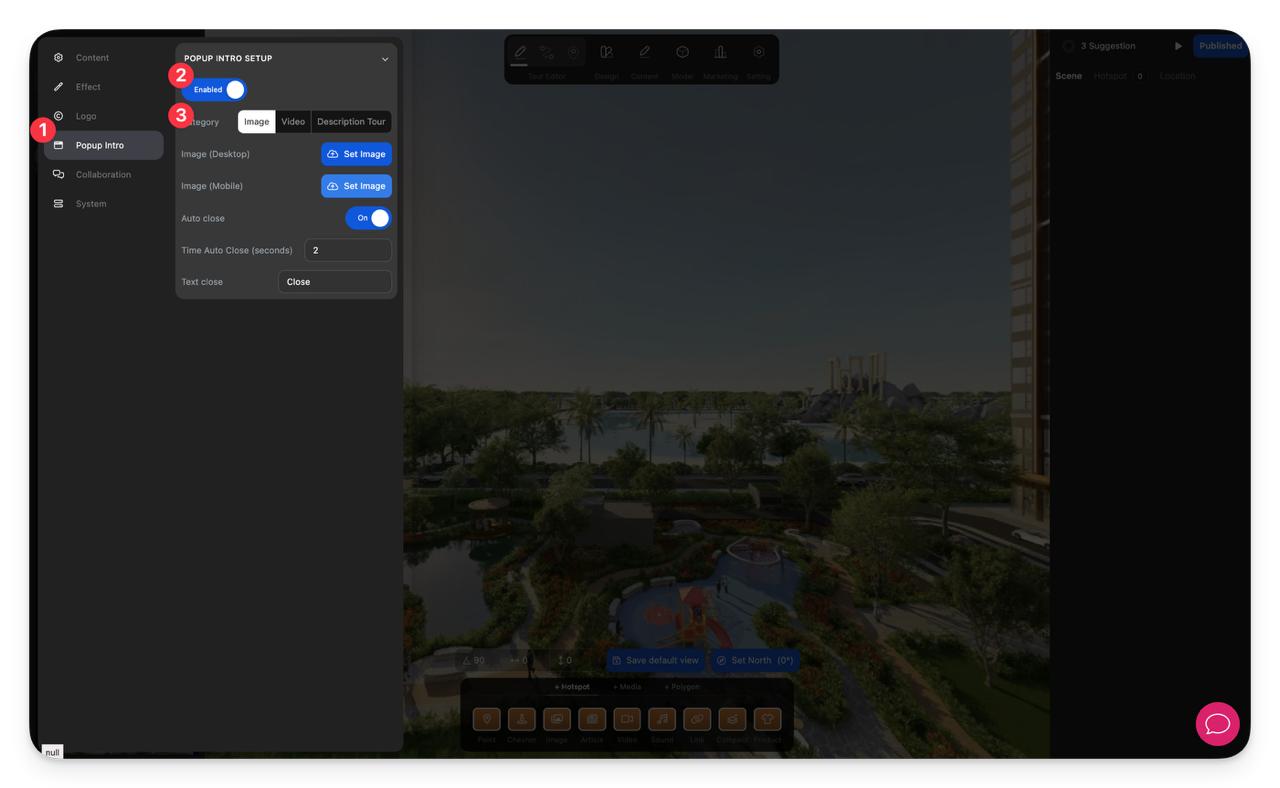
-
Add a video intro
Open the Video tab, then upload or change the videos you want to show before viewers enter the tour.
Setting Description Video (Desktop) Sets the intro video for desktop viewers. Video (Mobile) Sets the intro video for mobile viewers. Mute Starts the intro video without sound. Auto close Automatically closes the popup after a set time. Time Auto Close (seconds) Controls how long the video intro stays visible before closing. Text close Sets the label of the close button. 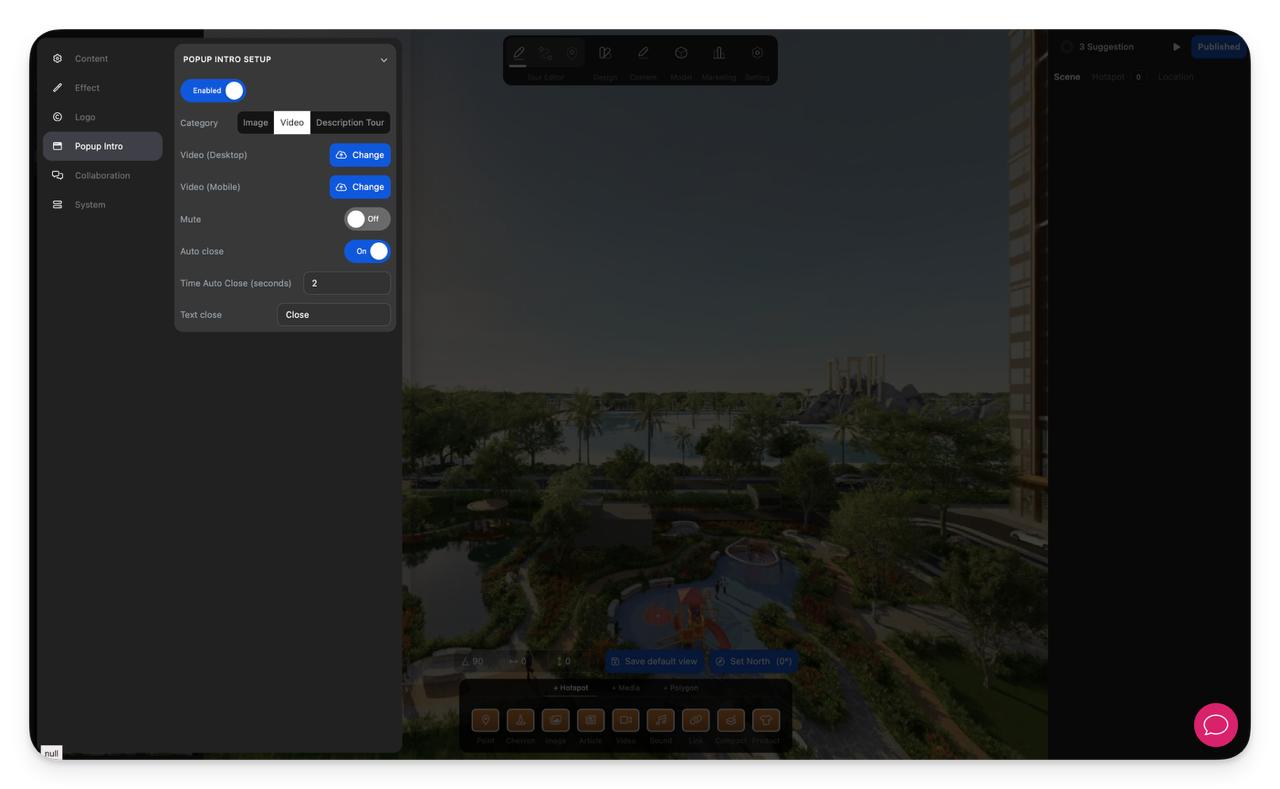
-
Use a tour description article
Open the Description Tour tab, then select the description article you want to use as the intro content.
Choose a display mode:
Mode Description Fullscreen Shows the selected description as a full-screen welcome page. Modal Shows the selected description inside a popup window. 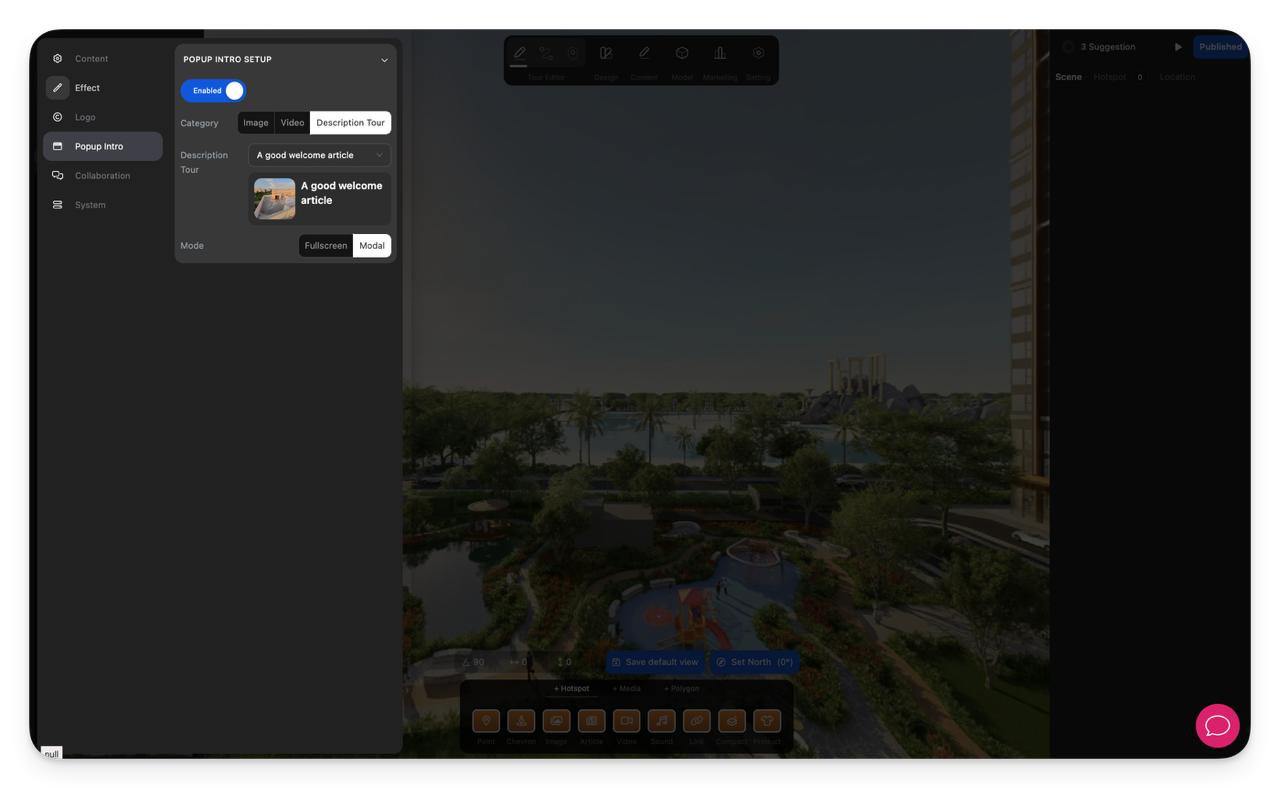
-
Review the result
Open the tour viewer and confirm the popup appears before the tour starts. Click the close button to make sure the popup closes correctly and the viewer can begin exploring the tour.
Notes
- Use Image for a quick branded welcome screen, Video for a more immersive introduction, and Description Tour when you want to present richer written content before the tour begins.
- Prepare separate desktop and mobile media so the intro looks correct on different screen sizes.
- Keep the close button text short and clear.
- If Auto close is enabled, choose a duration long enough for viewers to understand the intro before it disappears.